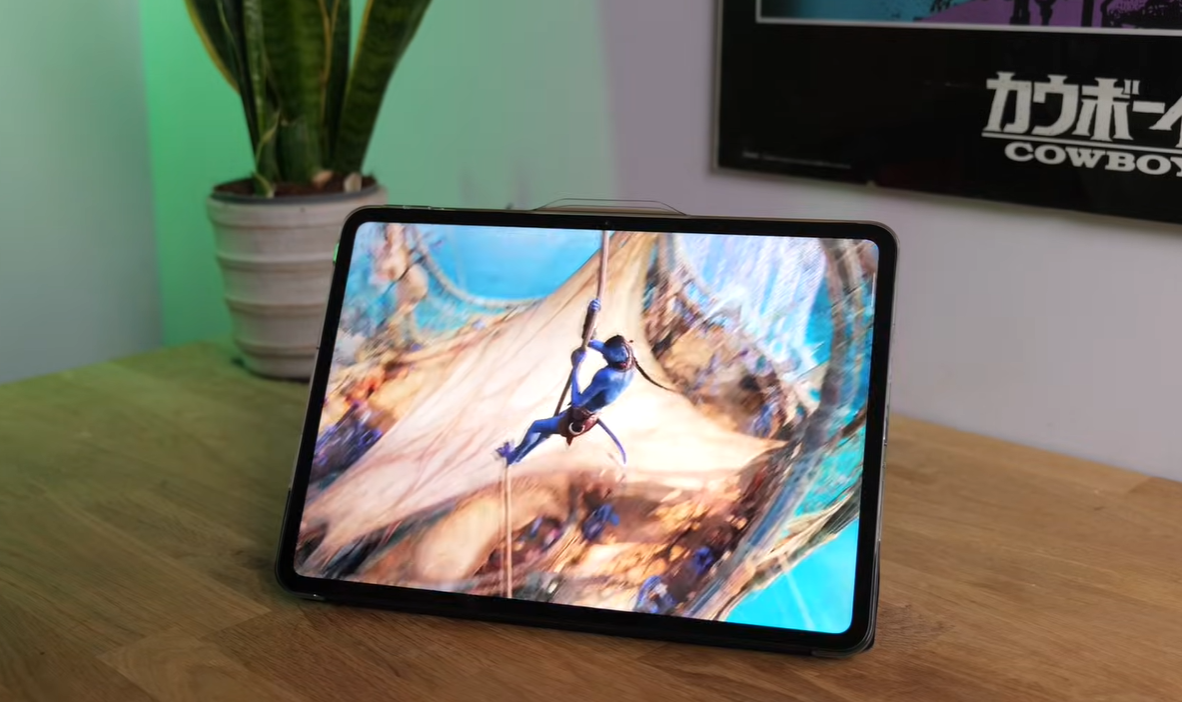
TLDR: The OnePlus Pad Go 2 packs powerful productivity features including Recent Files in taskbar, Smart Sidebar with File Dock (syncs across OnePlus devices), Floating Windows for multitasking, Flux Themes with depth effects, customizable Dark Mode shades, App Pairs for instant split-screen launch, AI photo editing with people removal, AI transcription in Recorder app, AI article summaries, and Live Alerts for background activities. These features transform the tablet from a basic device into a productivity powerhouse.
Introduction: More Than Just a Budget Tablet
The OnePlus Pad Go 2 might be positioned as an affordable tablet, but it’s packed with features that rival premium devices. From intelligent multitasking to AI-powered tools, this 12.1-inch tablet offers capabilities that can genuinely enhance your productivity and creativity.
In this comprehensive guide, we’ll explore 10 cool features that showcase what makes the OnePlus Pad Go 2 special—many of which you probably didn’t know existed.
1. Recent Files in Taskbar: Quick Access to Everything
What It Does
The Recent Files feature provides instant access to all recently accessed files directly from your taskbar—no need to dig through file managers or apps.
How to Use It
Accessing Recent Files:
- Look at your taskbar (bottom of screen)
- Tap the Recent Files icon
- View all recently downloaded images, documents, recordings, and other files
What Appears:
- Recently downloaded images
- Recent documents
- Audio recordings
- Any other recently accessed files
Enabling/Disabling the Feature
Step-by-Step:
- Go to Settings
- Navigate to Accessibility
- Select Taskbar
- Toggle Recent Files on/off
Bonus: Taskbar in Apps
From the same Taskbar settings, you can manage “Show Taskbar in Apps”:
How It Works:
- With feature ON: Swipe up from bottom of any app to bring back taskbar
- Tap anywhere to dismiss it
- With feature OFF: Only back gesture works (taskbar won’t appear)
Why It’s Useful: Provides quick file access without interrupting your workflow. Perfect for referencing documents, finding recent downloads, or accessing files across multiple apps.
2. Quick Split-Screen Mode: Instant Multitasking
The Fast Way to Enter Split View
Forget the traditional long-press-and-drag method. OnePlus Pad Go 2 offers a much faster approach.
Method 1: Swipe Down
- Open any app
- Swipe down from the top of the display
- System presents option to open another app alongside current one
- Select second app
- Both apps now run side-by-side
Advanced Split View Settings
Enabling the Feature:
- Settings → Accessibility and Convenience
- Select Split View
- Toggle it ON
Split View Notice (Smart Feature)
What It Does: Tablet learns your behavior and suggests split view automatically.
When It Triggers:
- After repeatedly switching between same two apps
- When a link redirects you to another app
Example: If you constantly switch between Chrome and Notes, the tablet will suggest opening them in split view—saving you time and effort.
Why It’s Useful: The 12.1-inch display is perfect for multitasking. Read emails while taking notes, watch videos while browsing, or shop while checking your wishlist.
3. Smart Sidebar & File Dock: Cross-Device Clipboard on Steroids
What Is Smart Sidebar?
Think of it as Samsung’s Edge Panels for OnePlus devices—but with a game-changing addition called File Dock.
Setting Up File Dock
Initial Setup:
- Settings → Accessibility and Convenience
- Select Smart Sidebar
- Find File Dock option
- Toggle it ON
What Appears: A new File Dock icon appears in your sidebar.
Enable Sync (Optional but Powerful): Tap the File Dock icon and enable Sync to sync clipboard content across ALL your OnePlus devices (phone, tablet, etc.).
How File Dock Works: Real-World Examples
Example 1: Copying Text from Google Keep
- Open Google Keep
- Copy some text
- Long-press on the copied text
- File Dock option appears automatically
- Tap to paste it into File Dock
Example 2: Copying Images from Gallery
- Open Gallery app
- Long-press an image
- Drag it toward the sidebar
- File Dock appears
- Drop the image into File Dock
Using File Dock Content in Another App
Scenario: You’ve collected multiple items in File Dock and want to paste them into a Notes app.
Steps:
- Open Notes app
- Create a new note
- Bring up File Dock from sidebar
- Start pasting items one by one
- All copied text, images, and files transfer seamlessly
Why It’s Revolutionary:
- Traditional clipboard holds ONE item
- File Dock holds MULTIPLE items simultaneously
- Works across ALL OnePlus devices via sync
- Game-changer for content creators, students, and professionals
4. Floating Windows: True Desktop-Style Multitasking
What Are Floating Windows?
Unlike split-screen (which locks apps to specific screen portions), floating windows let you resize, move, and layer apps freely—just like desktop operating systems.
Creating Floating Windows
Method:
- Open any app (e.g., Calculator)
- Swipe up from bottom to see app controls
- You’ll see two options:
- Split View (divides screen)
- Floating Window (moves app to floating mode)
- Drag app icon to floating window area
- Release to create floating window
Managing Floating Windows
Resize: Drag corners to resize to any dimension you prefer
Move: Drag from title bar to reposition anywhere on screen
Minimize: When not actively using, swipe to edge—window minimizes to small icon but stays accessible
Restore: Tap minimized icon to bring window back
Multiple Floating Windows
You can have MULTIPLE floating windows simultaneously:
Example:
- Calculator open as floating window (minimized)
- Gallery open as floating window (minimized)
- Both appear as icons on screen edge
- Tap any icon to expand that window
Swapping Between Full-Screen and Floating
Scenario:
- Gallery is full-screen
- Calculator is floating window
- You want to swap them
Solution: Tap “Swap Apps” button and they exchange positions instantly.
Quick Swap: Double-tap to swap back—perfect for rapid switching between two workflows.
Adjusting Transparency
Make floating windows semi-transparent to see content underneath while still interacting with the floating app.
Why It’s Useful:
- Reference calculator while filling spreadsheet
- Keep chat window visible while working
- Watch video tutorial while following steps in another app
- True desktop-level productivity on a tablet
5. Flux Themes: Stunning Depth-Effect Lock Screens
What Are Flux Themes?
Flux Themes create visually stunning lock screens where the time appears behind the subject of your wallpaper—creating a 3D depth effect that looks premium.
Setting Up Flux Themes
Step-by-Step:
- Settings → Home and Lock Screens
- Select Flux Themes
- Browse pre-made templates
- Choose one to customize
Customization Options
1. Wallpaper Selection
- Choose from pre-made options
- Or use your own photos from Gallery
2. Time Format
- Multiple clock styles available
- Select what looks best with your wallpaper
3. Depth Effect (The Magic) This makes time appear behind your wallpaper subject.
How It Works:
- AI detects the main subject
- Places time layer behind subject
- Creates stunning 3D illusion
4. Additional Elements
- Add step counter
- Display weather information
- Customize placement
Lock Screen vs Home Screen Styling
Lock Screen: Keep blur OFF to maintain depth effect (blur removes it)
Home Screen: Enable blur for cleaner look with app icons
Example Setup:
- Select photo with clear subject (person, object, pet)
- Enable depth effect
- Choose clean time format
- Add weather widget
- Keep lock screen blur OFF
- Enable home screen blur
- Apply and enjoy stunning results
Why It’s Cool: Makes your budget tablet look like a premium flagship device. The depth effect is genuinely impressive and rivals iOS depth wallpapers.
6. Customizable Dark Mode: Multiple Shades for Eye Comfort
Beyond Simple Dark Mode Toggle
Most devices offer binary choice: dark mode on or off. OnePlus Pad Go 2 offers three distinct dark mode shades.
Enabling Dark Mode
Two Methods:
Method 1: Settings Settings → Display → Toggle Dark Mode ON
Method 2: Quick Controls Swipe down from top → Tap Dark Mode icon
Adjusting Dark Mode Shade
After enabling dark mode:
- Settings → Display → Dark Mode Settings
- Choose from three options:
Enhanced (Default):
- Deepest, truest black
- Best for OLED displays
- Maximum battery savings
- Highest contrast
Medium:
- Lighter shade of dark
- Softer on eyes
- Balanced look
- Reviewer’s personal favorite
Gentle:
- Lightest dark mode
- Minimal contrast
- Good for gradual transition from light mode
- Less jarring in bright environments
Why It Matters:
- Pure black can be harsh on eyes
- Medium/Gentle modes reduce eye strain
- Different lighting conditions suit different shades
- Personal preference varies significantly
Pro Tip: Try Medium for daily use—it offers the best balance between readability and eye comfort.
7. App Pairs: Launch Two Apps Instantly
What Are App Pairs?
If you frequently use two specific apps side-by-side, App Pairs let you save that combination and launch both apps simultaneously with one tap.
Creating an App Pair
Steps:
- Open two apps in split-screen mode
- Tap the bar at the center (between the two apps)
- Select “Save as App Group”
- App pair appears on home screen as single icon
Using Your App Pair
From Home Screen:
- Clear both apps from recents (close them)
- Tap the app pair icon
- Both apps launch instantly in split-screen
From Sidebar: App pairs can also be added to Smart Sidebar for even quicker access.
Adding to Sidebar:
- Open sidebar
- Tap Edit
- Find your app pair
- Tap to add it to sidebar
- Now accessible from any screen
Common App Pair Examples
For Students:
- Browser + Notes
- PDF Reader + Notes
- Calculator + Notes
For Content Creators:
- Gallery + Photo Editor
- Notes + Browser
- Email + File Manager
For Professionals:
- Email + Calendar
- Slack + Documents
- Browser + Spreadsheet
Why It’s Useful: Saves 5-10 seconds every time you need these apps together. Over a day/week, that adds up to significant time savings.
8. AI Photo Editing: Professional Tools Built-In
Gallery App’s Hidden AI Arsenal
The OnePlus Pad Go 2’s Gallery app includes surprisingly powerful AI editing tools—no third-party apps needed.
Accessing AI Editing
Steps:
- Open Gallery app
- Select any photo
- Tap Edit button
- Select AI Editor
Available AI Editing Tools
Complete AI Feature List:
- AI Recompose – Intelligent composition adjustments
- Eraser – Remove unwanted objects/people
- Portrait Glow – Enhance portrait lighting
- Perfect Shot – Choose best face from burst
- Detail Boost – Enhance sharpness and clarity
- Unblur – Fix out-of-focus photos
- Reflection Eraser – Remove window/glass reflections
AI Eraser: The Star Feature
Three Modes:
1. Smart Lasso (Precision Removal)
How to Use:
- Select Smart Lasso
- Draw rough outline around object
- AI recognizes precise boundaries
- Tap to remove
- AI recreates background convincingly
Example: Remove a person, car, or unwanted object from photo.
2. Remove People (Bulk Removal)
Perfect for:
- Tourist photos with crowds
- Mall/street photos
- Any image with multiple people
How It Works:
- Select Remove People
- AI analyzes entire image
- Automatically detects ALL people
- One tap removes everyone
- Backgrounds convincingly recreated
Real-World Test:
- Photo with dozens of people in mall
- One tap → all people removed
- Clean, empty mall photo
- Background reconstruction impressive
3. Paint Over (Manual Control)
How to Use:
- Select Paint mode
- Adjust brush size
- Paint over anything you want removed
- AI fills in background automatically
Use Cases:
- Remove text overlays
- Eliminate photo-bombers
- Clean up messy backgrounds
- Remove temporary objects
AI Editing Quality Assessment
Strengths:
- Background recreation surprisingly convincing
- Much faster than manual Photoshop work
- Free (no subscription required)
- Works offline
Limitations:
- Complex backgrounds may show artifacts
- Very large objects harder to remove cleanly
- Best results with simple, textured backgrounds
Why It’s Impressive: Tools that required desktop software and expertise are now available with simple taps. Perfect for social media content, presentations, or personal photo organization.
9. Classic Notification Shade: Traditional Android Experience
Two Notification Styles Available
OnePlus offers both modern and classic notification experiences.
Default Modern Style
How It Works:
- Swipe from top-right: Quick controls panel
- Swipe from top-left: Notifications
Style: Separated, iOS-inspired approach
Classic Style (Recommended by Reviewer)
How It Works:
- Swipe from anywhere at top: Both quick controls AND notifications together
- Traditional Android style
- Everything in one place
Switching to Classic Style
Steps:
- Settings → Notifications and Quick Settings
- Select Quick Settings
- Choose Classic Mode
Result: Swipe from top (left, center, or right) to see:
- Quick control toggles at top
- Notifications below
- All in single unified panel
Why Some Prefer Classic:
- Faster access to everything
- No need to remember which side to swipe
- Traditional Android muscle memory
- More information density
Personal Preference: This is entirely subjective. Try both and stick with what feels natural.
10. Live Alerts: Persistent Background Activity Monitoring
What Are Live Alerts?
Live Alerts display background activities as persistent notifications at the top of your screen—similar to iOS Dynamic Island but more functional.
What Appears in Live Alerts
Background Activities:
- Screen recording in progress
- Audio recording
- Stopwatch running
- Timer active
- Music playback
- Hotspot enabled
- Navigation (Google Maps)
- Sports scores (Google)
Interacting with Live Alerts
Tap to Interact: Default setting opens card view with controls
Change behavior: Settings → Notifications and Quick Settings → Live Alerts → “Tap a capsule to”
- Card Format (view controls in overlay)
- Open App (launch full app)
Control Without Opening:
- Pause music
- Stop recording
- Cancel timer
- Check stopwatch time
Managing Multiple Live Alerts
When you have multiple background activities:
Swipe to Switch: Swipe left/right on live alert to cycle through active items
Swipe to Dismiss: Swipe again to hide temporarily
Bring Back: Swipe in alert area again to restore
Configuring Live Alerts
Settings Path: Settings → Notifications and Quick Settings → Live Alerts
App Alerts Available:
- Google services (Wallet, Maps, Sports)
- Custom apps (configure per app)
Service Alerts:
- Music playback
- Hotspot status
- Screen recording
- Call recording
Toggle individually based on what you want persistent visibility for.
Why It’s Useful:
- Never forget screen recording is running (saves battery)
- Monitor stopwatch without switching apps
- Control music without interrupting workflow
- Check timer status at a glance
BONUS: Advanced AI Features Worth Exploring
While not in the “main 10,” these AI features deserve honorable mentions:
AI Recorder Assistant: Real-Time Transcription
Location: Recorder App → Settings → AI Recorder Assistant
What It Does:
- Real-time transcription as you record
- Live text appears on screen during recording
- Perfect for lectures, interviews, meetings
Post-Recording AI Features:
1. AI Summarization
After recording, tap Generate Summary for:
- Brief summary
- Detailed summary
- Template-based summaries:
- WhatsApp call format
- Meeting notes format
- Interview format
- Knowledge base format
2. AI Clear Voice
Remove background noise from recordings:
- Tap Clear Voice button
- AI analyzes audio
- Removes ambient noise
- Enhances voice clarity
Sharing Options:
- Share as link
- Export audio + transcript
- Save summary as:
- Word document (.docx)
- Text file (.txt)
- Direct to Notes app
Use Cases:
- Students: Lecture transcription
- Journalists: Interview documentation
- Professionals: Meeting notes
- Content Creators: Podcast/video transcripts
AI Article Summary: Read Less, Learn More
How to Use:
- Open article in browser
- Open Smart Sidebar
- Tap Article Summary
- AI analyzes entire article
- Presents concise summary
Customization Options:
Summary Styles:
- Concise (shortest)
- Standard
- Detailed (comprehensive)
Format Templates:
- General summary
- Academic paper style
- Research format
- Note-taking format
Saving & Sharing:
- Save to Notes app
- Copy to clipboard
- Share via any app
Why It’s Powerful:
- Research articles quickly
- Study more efficiently
- Save time on long reads
- Extract key points instantly
Practical Example:
- Long tech article (10 minutes to read)
- AI summary (1 minute to read)
- Still get all key information
- Decide if full read is worth it
Conclusion: A Surprisingly Capable Productivity Machine
What Makes OnePlus Pad Go 2 Special
The OnePlus Pad Go 2 isn’t just about specs—it’s about thoughtfully implemented features that enhance real-world productivity:
Core Strengths:
- Multitasking Excellence – Floating windows, split view, app pairs
- Cross-Device Integration – File Dock syncs across OnePlus ecosystem
- AI Intelligence – Photo editing, transcription, article summaries
- Customization – Dark mode shades, notification styles, flux themes
- Practical Tools – Live alerts, recent files, smart sidebar
Who Should Buy OnePlus Pad Go 2?
Perfect For: ✅ Students (note-taking, research, content consumption)
✅ Content creators (photo editing, multitasking)
✅ Professionals (productivity, document work)
✅ OnePlus ecosystem users (File Dock sync magic)
✅ Budget-conscious buyers wanting flagship features
Consider Alternatives If: ❌ You need absolute best display quality (iPad Pro territory)
❌ You require specific professional apps (iPad ecosystem)
❌ You want the largest app selection (iPad/Samsung)
❌ Gaming is primary use (dedicated gaming tablets exist)
Final Thoughts
The OnePlus Pad Go 2 proves that budget doesn’t mean basic. With features like File Dock, AI editing tools, and flexible multitasking, it punches well above its price point.
Key Takeaway: Most users barely scratch the surface of what this tablet can do. By exploring these 10 features (plus AI bonuses), you’ll transform your OnePlus Pad Go 2 from a simple media consumption device into a genuine productivity powerhouse.
Pro Tip: Spend 15-20 minutes setting up:
- Your preferred app pairs
- File Dock sync
- Custom flux theme
- Floating window workflows
This initial investment will pay off with hours saved over the weeks and months ahead.
Quick Reference: Feature Activation Checklist
Copy this checklist and enable features you want:
☐ Recent Files – Settings → Accessibility → Taskbar
☐ Split View – Settings → Accessibility → Split View
☐ File Dock – Settings → Accessibility → Smart Sidebar
☐ Flux Themes – Settings → Home and Lock Screens
☐ Dark Mode Shade – Settings → Display → Dark Mode Settings
☐ Classic Notifications – Settings → Notifications → Quick Settings
☐ Live Alerts – Settings → Notifications → Live Alerts
☐ AI Recorder – Recorder App → Settings → AI Assistant
☐ AI Photo Editing – Gallery App → Edit → AI Editor
☐ Article Summary – Smart Sidebar → Article Summary
No, File Dock sync only works across OnePlus devices (phones, tablets, etc.). However, the File Dock itself works on the tablet independently.
While the exact limit isn’t specified, you can have multiple floating windows open. Practical limit is 3-4 before screen becomes cluttered.
Have you discovered any other hidden features on your OnePlus Pad Go 2? Share your tips in the comments below!