TL;DR: The Settings You’re Missing
Just got a Samsung or still haven’t explored your settings menu? Stop what you’re doing and enable these five essential features that’ll make your phone actually work like a premium device:
- Motions & Gestures — Palm swipe screenshots, double-tap wake, gesture muting
- Accidental Touch Protection — Stop pocket-dialing your ex
- Swipe Down Notification Panel — One-handed notification access without stretching
- Camera Quick Launch — Double-press power button = instant camera
- Video Brightness — Makes Netflix, YouTube, and every video pop with richer colors
These aren’t buried Easter eggs — they’re core features Samsung hides in the Advanced Features menu that transform how you use your phone. Let’s fix that.
Introduction: Your Samsung Is Holding Out on You
Look, Samsung phones are incredible. But out of the box? They’re not optimized. They’re running on default settings that prioritize battery life and “safe” user experience over actual functionality.
If you just picked up a Galaxy S25, Galaxy Z Fold 7, or any Samsung phone this holiday season, you’re probably loving the hardware. But I guarantee you’re missing out on features that make the software experience exponentially better.
Here’s the thing: Samsung buries its best features in a menu called “Advanced Features.” Most users never go there. So they’re using a $1,000+ phone like it’s 2018.
Today, we’re fixing that. These five settings take less than 3 minutes to enable, and they’ll make your Samsung feel like a completely different phone.
Let’s go.
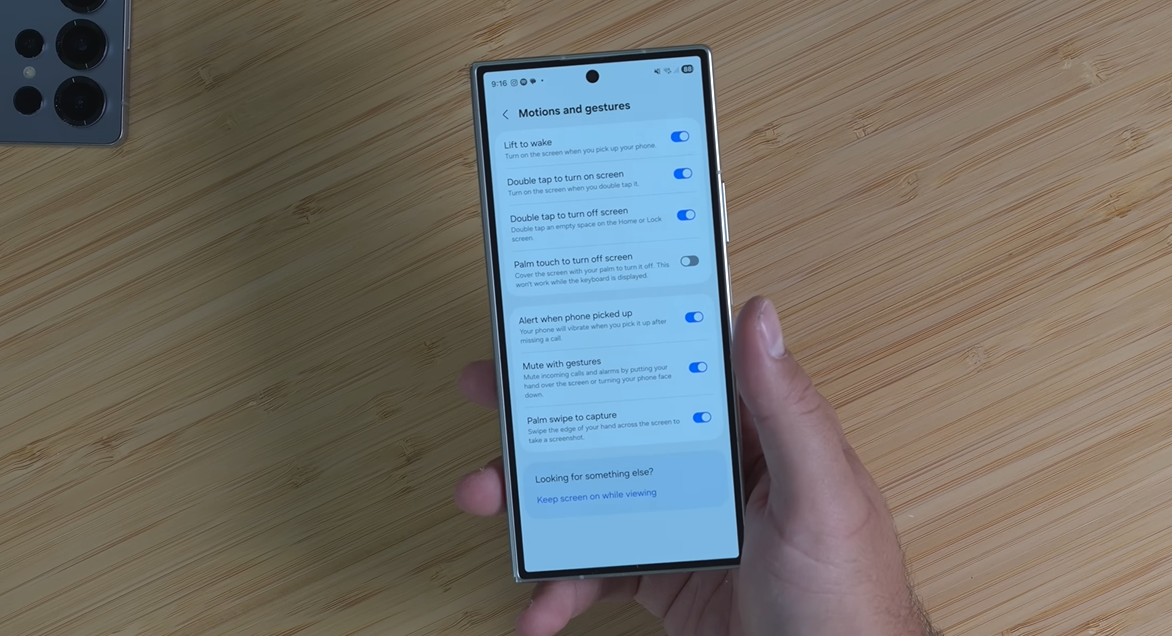
Setting #1: Motions & Gestures (The Swiss Army Knife of Features)
This is the big one. The Motions and Gestures menu is packed with quality-of-life features that Samsung just… doesn’t tell you exist.

How to Enable It:
Settings → Advanced Features → Motions and Gestures
Once you’re in, you’ll see a bunch of toggles. Here’s what actually matters:
Double Tap to Wake
Screen off? Just double-tap the display and it wakes up. No need to fumble for the power button. This is especially clutch when your phone’s on a desk or wireless charger.
Double-Tap to Turn Off the Screen
Reverse of the above. On your home screen? Double-tap a space, and the screen turns off. Saves you from reaching for the power button when you’re already holding the phone.
Palm Touch to Turn Off Screen
This one’s wild. Cover the screen with your palm and it turns off — just like Samsung watches. Feels futuristic. Works perfectly.
Alert When Phone Picked Up
Missed a call and didn’t notice? Your phone will vibrate when you pick it up to remind you. Subtle, helpful, not annoying.
Mute with Gestures
Getting a call in a meeting? Just place your phone face-down on the table and the call mutes instantly. No need to reject it or scramble for buttons. Professional. Clean.
Palm Swipe to Capture (The GOAT Screenshot Method)
This has been around for years, but if you’re not using it, you’re missing out. Want a screenshot? Swipe the side of your palm across the screen. Done. No weird button combos. No hand gymnastics.
Pro tip: Some of these (like “Lift to Wake”) can be too aggressive and drain battery. I keep that one off. But the rest? All on.
Setting #2: Accidental Touch Protection (Stop Butt-Dialing Forever)
You know what’s embarrassing? Pocket-dialing someone. Or worse, sending gibberish texts because your phone screen is activated in your bag.
Samsung has a fix for this, and it’s shockingly good.
How to Enable It:
Settings → Display → Accidental Touch Protection
What this does: When you put your phone in your pocket or bag, it detects the environment and ignores accidental touches. No more random app launches. No more 47 missed calls to your boss because your thigh hit the screen wrong.
This is one of those features you don’t appreciate until you realize you haven’t had a pocket-dial incident in months.
Setting #3: Swipe Down for Notification Panel (One-Handed Mode Unlocked)
By default, Samsung makes you reach all the way to the top of the screen to pull down notifications. On a 6.8-inch Galaxy S25 Ultra? That’s a two-handed operation.
This setting fixes that.
How to Enable It:
Home Screen Settings (long-press empty space) → Scroll down → Swipe Down for Notification Panel → Toggle ON
Now you can swipe down anywhere on the home screen to pull down notifications. No stretching. No hand acrobatics. Just swipe.
Important: If you leave this off, swiping down opens the app drawer instead. You don’t want that. Turn this on.
From the notification panel, you can also swipe again to access Quick Settings (Wi-Fi, Bluetooth, flashlight, etc.). One UI 7 redesigned this whole panel, and it’s actually clean now.
Setting #4: Camera Quick Launch (Never Miss a Shot Again)
This is the single most underrated feature on Samsung phones. And it’s been around for years.
Here’s the deal: Double-press the power button and your camera launches instantly. Screen locked? Doesn’t matter. Inside an app? Doesn’t matter. Camera. Fires. Immediately.
How to Enable It:
Settings → Advanced Features → Side Button → Double Press → Quick Launch Camera
By default, this is usually enabled. But if it’s not, turn it on. This is non-negotiable.
Bonus Features:
- Double-press again to flip to the selfie camera
- Another double-press to flip back to the rear camera
- You can reprogram this button to launch any app (flashlight, Samsung Wallet, voice recorder, etc.)
But for me? Camera quick launch is the move. I’ve been using this for years. When you see something worth capturing, you don’t have time to unlock your phone, swipe to the camera app, and frame the shot. You need instant access. This is it.
Real talk: This feature alone has saved me from missing dozens of shots — pets doing dumb stuff, sunsets, random moments you can’t recreate. Worth it.
Setting #5: Video Brightness (Make YouTube & Netflix Actually Pop)
Samsung AMOLED displays are gorgeous. But when you’re watching videos, Samsung defaults to “Normal” mode — which is fine, but not optimized.
The Video Brightness feature temporarily boosts screen brightness and color vibrancy when you’re watching videos. It’s the difference between “this looks good” and “holy shit, this looks incredible”.
How to Enable It:
Settings → Advanced Features → Video Brightness → Bright
You’ll see two options: Normal (default) and Bright. Choose Bright.
Here’s the cool part: You can customize this per app. So if you want Netflix boosted but not YouTube, you can toggle it individually.
What it actually does:
- Brightens dark areas without blowing out highlights
- Makes colors more vibrant and saturated
- Gives you that “HDR-ish” look even on non-HDR content
I’ve had this on for years and never turned it off. It’s one of those features where once you enable it, you forget it exists — until you watch a video on someone else’s phone and think, “Why does this look so washed out?”.
Note: This feature is typically available on flagship Galaxy devices (S-series, Z Fold/Flip, some high-end A-series). If you don’t see it, your device might not support it.
Bonus: What’s in the Advanced Features Menu?
Since we’ve been bouncing in and out of Settings → Advanced Features, here’s what else lives in there that’s worth exploring:
- One-Handed Mode — Shrinks the screen for easier thumb reach
- Screenshot Toolbar — Edit, share, or scroll-capture right after screenshotting
- Multi Window — Run two apps side-by-side
- Edge Panels — Quick access sidebar for apps, tools, contacts
- Direct Share — Suggests contacts to share with based on your habits
- Smart Pop-up View — Opens notifications as floating windows
There’s a lot in this menu. Spend 5 minutes exploring. You’ll find features you didn’t know you needed.
Quick Setup Guide: Enable All 5 in Under 3 Minutes
Here’s the speedrun version:
- Settings → Advanced Features → Motions and Gestures → Enable palm swipe, double-tap wake/sleep, mute with gestures
- Settings → Display → Accidental Touch Protection → Toggle ON
- Home Screen (long-press empty space) → Settings → Swipe Down for Notification Panel → Toggle ON
- Settings → Advanced Features → Side Button → Double Press → Quick Launch Camera
- Settings → Advanced Features → Video Brightness → Choose Bright
Done. Your Samsung is now optimized.
Final Thoughts: Your Samsung Deserves Better Than Default Settings
Samsung makes incredible phones. But they ship them with settings that prioritize simplicity over functionality.
These five features transform how you interact with your device. They make your phone faster, more intuitive, and more useful. And they take less than 3 minutes to enable.
If you just picked up a Galaxy S25, Galaxy Z Fold 7, Galaxy Z Flip 7, or any Samsung device this year — or you’ve been using one for years and never touched Advanced Features — do this now. You’ll thank me later.
Which settings are you enabling first? Drop a comment below. And if you’ve got other Samsung tips, share them — I’m always looking for hidden features I’ve missed.