TLDR: Samsung One UI 8.5 brings massive customization upgrades including fully customizable Quick Settings panel with resizable tiles, three new lock screen clock fonts with thickness adjustment, automatic wallpaper intelligence, partial screen recording, enhanced AI photo editing (erase/move/create/style), private album with fingerprint lock, dim strobing for eye protection, theft protection improvements, weather-based alarm backgrounds, and refined UI animations throughout. This is the most customizable One UI yet.
Introduction: Samsung’s Biggest Customization Update
Samsung One UI 8.5 represents a significant leap forward in personalization and functionality. While maintaining the clean, user-friendly interface Samsung users love, this update introduces features that give users unprecedented control over their device’s appearance and behavior.
From redesigning the Quick Settings panel to adding AI-powered photo editing tools and hidden privacy features, One UI 8.5 proves Samsung is listening to user feedback and delivering features that matter.
This comprehensive guide covers every new feature, hidden trick, and upgrade in One UI 8.5, with step-by-step instructions to help you make the most of your Samsung device.
1. Quick Settings Panel: Total Customization Revolution
The Biggest Change in One UI 8.5
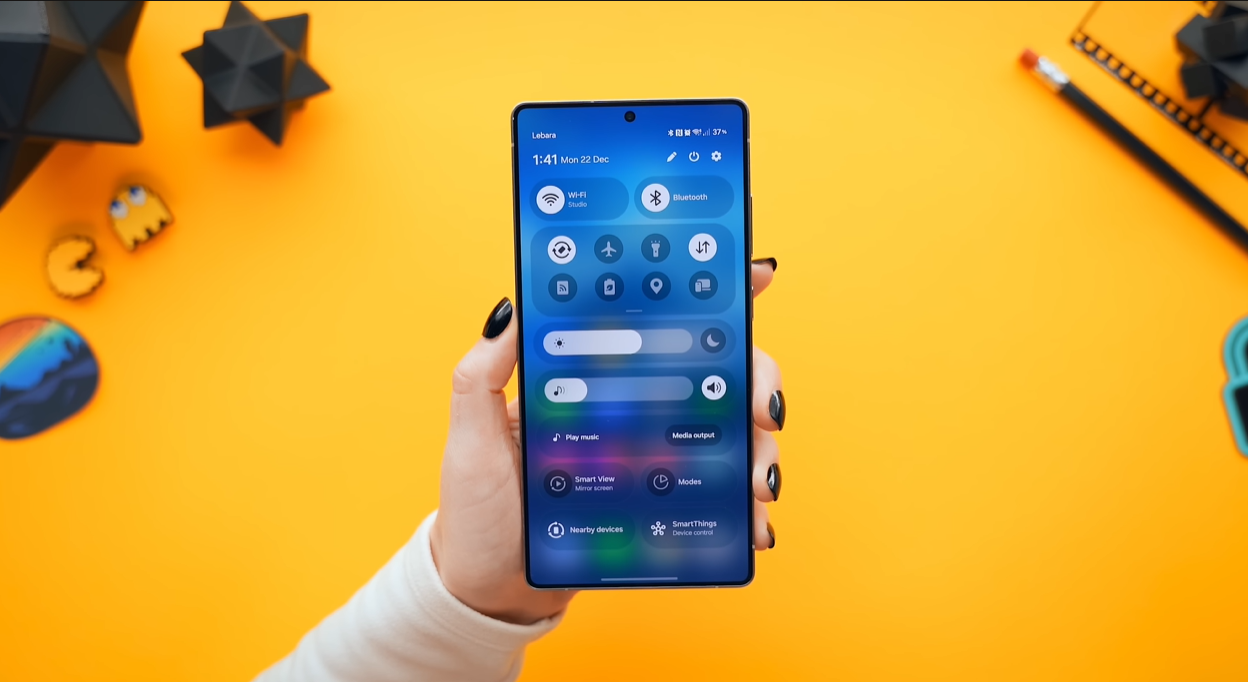
The Quick Settings panel has been completely reimagined with customization options that were previously unavailable.
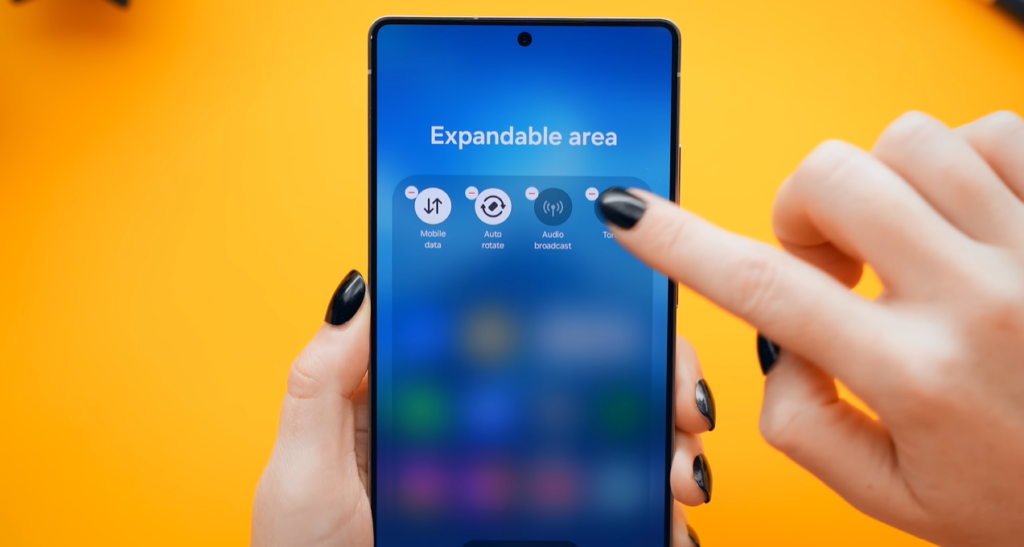
Accessing the New Panel:
- Swipe down from the top of your screen
- Tap the pencil icon (edit button)
New Customization Features
Handles on Every Control: You’ll immediately notice new handles on every Quick Settings tile. These handles enable:
- Grabbing tiles
- Dragging them anywhere
- Resizing tiles to different shapes
“Wonder where Samsung got that idea from…” (Reviewer’s subtle nod to iOS inspiration)
Tile Size Options
Two Default Sizes:
1. Normal Icon Shape
- Standard square/circular icon
- Compact, traditional look
- Maximizes number of visible tiles
2. Pill Shape
- Elongated, modern design
- More prominent, easier to tap
- Contemporary aesthetic
Special Tile Configurations
Volume & Brightness Sliders:
- Can be reshaped to vertical orientation
- Position them right by your thumb for one-handed use
- Drag to any location on the panel
Media Control Tile:
- Adjustable from small to large
- Large size shows album art and full controls
- Small size is compact and minimal
Grid System Flexibility
Three Layout Options:
1. Inside the Grid Tiles snap to organized grid layout (traditional)
2. Outside the Grid Tiles positioned independently, floating freely (creative layouts)
3. Mixed Approach Combine grid-snapped tiles with free-floating elements
Adding New Controls
Expanding Your Panel:
- Tap “Add a Control” button
- Browse extensive list of available tiles
- Options include:
- Dolby Atmos
- Eye Comfort Shield
- Bixby Routines
- Samsung DeX
- And many more
Bonus: Each icon now has slightly new animations when toggled—a refined touch that enhances the experience.
Example Layouts You Can Create
Pill-Shaped Quick Panel: All tiles in elongated pill format for modern look
Icon-Only Layout: Compact grid with only icon shapes (maximizes density)
Completely Custom: Mix of sizes, shapes, and positions tailored to your workflow
Resetting to Default
Made a Mess? No Problem:
- Tap the three-dot menu
- Select Panel Settings
- Scroll to bottom
- Tap “Reset Quick Settings Panel to Default”
- Everything returns to factory layout
Why This Matters: The Quick Settings panel is one of the most-used interfaces on your phone. Custom positioning of volume/brightness sliders near your thumb can genuinely improve daily usability.
2. Lock Screen: New Fonts, Intelligence & Weather
Cleaner Settings Interface
First Impression: Settings menus now remove those little descriptions below each option—everything looks much cleaner. Less visual clutter makes navigation faster.

New Lock Screen Features
Accessing Lock Screen Settings:
- Settings → Wallpaper and Styles
- Select Lock Screen
Three New Clock Fonts with Animations
How to Access:
- Tap Clock option
- Swipe left to reveal new fonts
New Fonts: Three additional modern fonts, each featuring:
- Slick animations when lock screen activates
- Contemporary, readable designs
- Unique character
Adjustable Clock Thickness (Game-Changer)
Revolutionary Feature: Almost every clock font now has an adjustable thickness slider
How to Use:
- Select any compatible clock font
- Use the slider to adjust thickness
- Range from ultra-thin to bold
- Real-time preview
Why It’s Awesome: Finally, genuine customization beyond just choosing from preset fonts. You can fine-tune the look to match your aesthetic perfectly.
Intelligent Wallpaper Positioning
Automatic Layout Adjustment:
How It Works:
- Set wallpaper with prominent subject (like a pet photo)
- The clock and widgets automatically resize and reposition based on wallpaper content
- Ensures subject isn’t obscured by UI elements
Example:
- Photo of dog in center
- Clock automatically moves to top or bottom
- Widgets resize to fit available space
- Your pet remains fully visible
Smart Design: Uses AI to detect important elements in your wallpaper and arranges UI elements accordingly.
Weather Animation Toggle
Dynamic Weather Wallpapers:
Location: Inside Lock Screen settings, at the bottom: Weather Toggle
What It Does: When enabled, your wallpaper displays animated weather conditions matching your current location:
- Rain animation when it’s raining
- Snow when it’s snowing
- Sunny animations in clear weather
- Clouds, fog, storms—all visualized
Hidden Gem: This feature existed before but was buried deep in settings. Now it’s prominently accessible.
Practical Use: Check weather at a glance without unlocking phone or opening weather app.
3. Hidden Features You Need to Enable
Customizable Folder Colors & Transparency
New Location: Previously in one place, now moved for better organization.
How to Access:
- Tap and hold on any home screen folder
- Select new Settings option
What You Can Do:
1. Change Folder Colors
- Basically any color you want
- Full spectrum color picker
- Match your wallpaper or theme
2. Transparency Slider (NEW)
- Make folders completely see-through
- Adjust from 0% (solid) to 100% (invisible background)
- Content remains visible
Pro Trick: Enlarged Transparent Folders
The Setup:
- Enable enlarged folder option
- Set transparency to high/maximum
- Place on home screen
The Result: Looks like you have a ton of mini apps on your home screen instead of folders—ultra-clean aesthetic with quick access to many apps.
Partial Screen Recording
Finally! The Feature We’ve Been Waiting For
How to Use:
- Swipe down to Quick Settings
- Tap Screen Recording icon
- NEW: Choose “Partial Screen Recording”
Smart Selection:
- Phone auto-detects what you likely want to record
- AI selects relevant window/app area
- You can manually resize the selection window
Recording:
- Hit Record
- Only the selected area is captured
- Everything outside is ignored
Result: Open Gallery after recording—you’ll find a perfectly cropped screen recording with no editing required.
Use Cases:
- Record specific app without system UI
- Capture game footage without notifications
- Create tutorial videos with focused content
- Share relevant portions without sensitive info
Calculator Clipboard Integration
Smart Copy-Paste Calculation:
Scenario: You copy a calculation from an article or message:
- Example: “1,250 + 3,500 – 840”
What Happens:
- Copy the calculation text
- Open Calculator app
- NEW: Popup appears automatically
- Tap popup to instantly get the answer
No Manual Entry Required: Calculator reads copied text, performs calculation, and displays result.
Practical: Shopping comparisons, tip calculations, bill splitting—copy and solve instantly.
4. AI Photo Editing: Professional Tools Built-In
Accessing Photo Editor
Location:
- Open Gallery app
- Select any photo
- Tap Edit icon
- Select the four updated AI tools
Four Enhanced AI Tools
The Toolset:
- Erase – Remove unwanted objects/people
- Move – Relocate and resize subjects
- Create – Sketch objects to add to photos
- Style – Transform photos into artistic styles
Tool 1: AI Eraser (Object Removal)
How to Use:
Method 1: Direct Tap
- Tap on object you want removed
- AI automatically selects it
- Hit Erase button
- Object disappears, background fills in
Method 2: Circle Selection
- Draw circle around object
- AI snaps to object boundaries (smart detection)
- Erase
- Background intelligently recreated
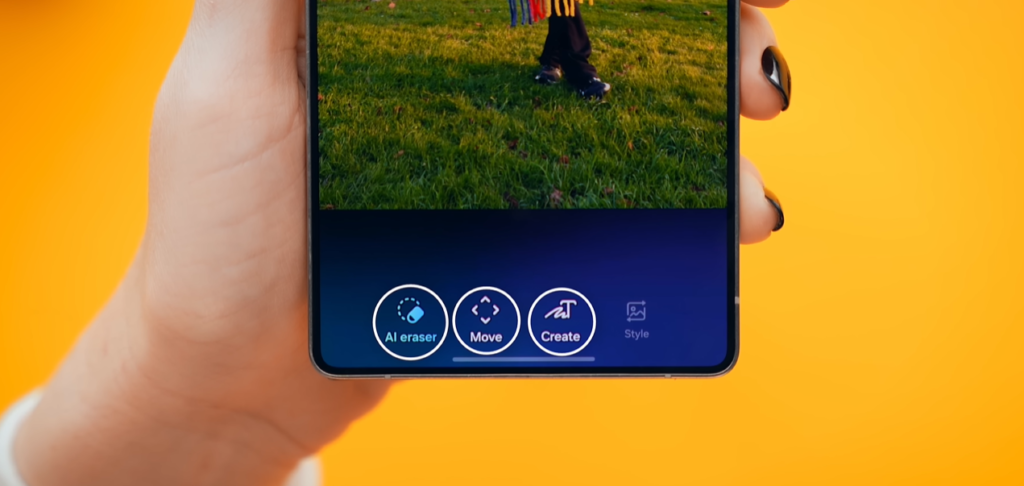
What Makes It Good: Samsung’s AI does an impressive job filling in backgrounds convincingly. Works on:
- People
- Objects
- Text overlays
- Photo-bombers
- Unwanted elements
Tool 2: AI Move (Reposition & Resize)
How It Works:
Step-by-Step:
- Select object using same methods as Erase
- Drag it anywhere in the photo
- Resize as needed
- Hit Generate
- AI fills in original location
- Blends moved object naturally
Processing Time: Takes a few seconds, but results are “really good job” according to reviewer.
Creative Uses:
- Adjust composition after the fact
- Move subjects closer together
- Reposition elements for better balance
- Resize subjects for emphasis
Tool 3: AI Create (Sketch to Object)
The Wild One:
How It Works:
- Sketch whatever you want to add
- Drawing does NOT need to be good (really, stick figures work)
- AI predicts what you intended
- Generates realistic object in your photo
Examples:
- Sketch rough dog shape → AI adds realistic dog
- Draw basic car → AI places actual car
- Scribble bird → AI creates detailed bird
“Crazy” – Reviewer’s reaction to how well this works.
Limitations: Results vary based on complexity and context, but it’s impressive how much the AI can interpret from crude sketches.
Tool 4: AI Style (Transform Photos)
Best for Selfies:
How to Use:
- Open selfie photo
- Select Style tool
- Choose from style options at bottom:
- 3D Cartoon
- Anime
- Painting
- Sketch
- Various artistic filters
- Hit Generate
- See yourself transformed
Example: “Boom, now you know what you’d look like as a cartoon”
Works on Pets Too: The reviewer tried it on pet photos—results are “honestly really fun” and hilarious.
Edit History Feature
Never Lose Track of Changes:
How to Access:
- While editing, tap “Keep Editing”
- Tap the history icon
- View every single change made to photo
What You See:
- Complete timeline of edits
- Each modification listed
- Tap any point to preview
- Can revert to any stage
Why It’s Useful:
- Try experimental edits without fear
- Compare before/after easily
- Share different versions
- Learn from your editing process
Privacy: On-Device Processing
Critical Privacy Feature:
Location: Gallery → Settings → Gallery Settings → Photo Assist → AI Erase and Move
Setting to Enable: Turn ON: “Processed Data Only on Device”
What This Does:
- All AI processing happens locally on your phone
- Nothing uploads to cloud
- Data never leaves your device
- Totally private
Important: Make sure this is enabled if privacy matters to you.
5. Gallery App: New Look & Features
Redesigned Interface
Visual Changes:
- Everything is now more rounded
- Softer, modern aesthetic
- “Feels familiar, if you know what I’m saying” (iOS influence noted)
- Cleaner overall presentation
Shot Types: Smart Organization
New Menu Option: Shot Types
What It Does: Automatically groups your entire gallery by format:
- All photos together
- All portrait shots
- All videos
- All selfies
- Each category in one organized place
Why It’s Great:
- Find specific content types instantly
- No manual sorting required
- Clean, logical organization
- Faster browsing
Example Use: Looking for that selfie from last week? Go to Shot Types → Selfies, and all your self-portraits are right there.
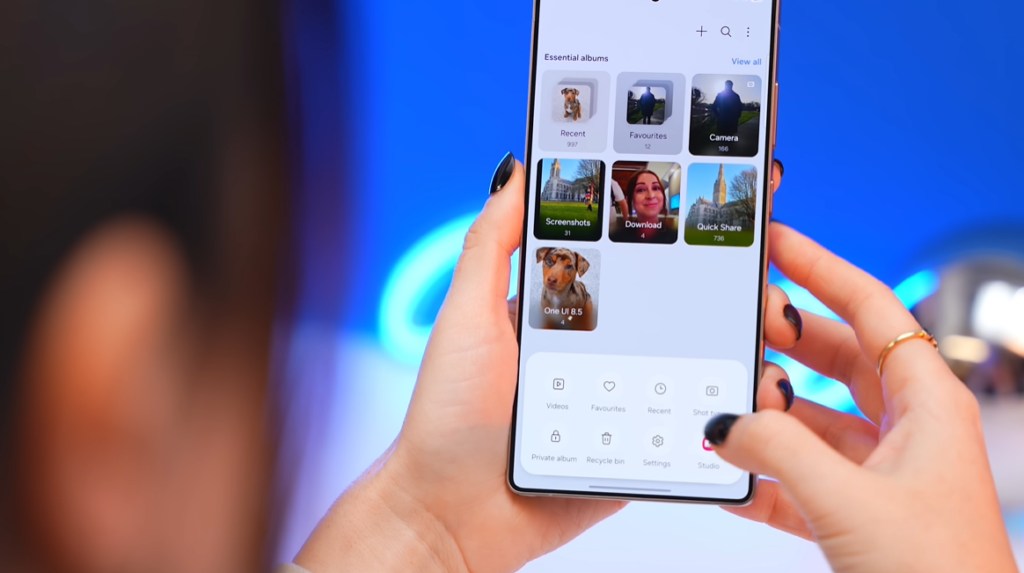
Private Album: Fingerprint-Protected Storage
Secure Photo Storage:
How to Set Up:
- Select photos/videos you want private
- Tap and hold to select multiple
- Tap three-dot menu
- Scroll to bottom
- Select “Move to Private Album”
- Selected items vanish from main gallery
Accessing Private Album:
- Open Gallery
- Navigate to Private Album
- Unlock with fingerprint
- View protected content
What’s Protected:
- Sensitive photos
- Private videos
- Personal documents
- Anything you don’t want in main gallery
Security: Only accessible via biometric authentication—no one can see these without your fingerprint.
Use Cases:
- ID documents
- Bank statements
- Personal moments
- Surprise gifts (photos)
- Work-related confidential images
6. Accessibility: Dim Strobing for Eye Protection
What Is Dim Strobing?
New Eye Protection Feature
Location: Settings → Accessibility → Vision Enhancements → Dim Strobing
The Problem It Solves
Scenario: Watching videos with rapid flashing, strobing lights, or intense visual effects can cause:
- Eye strain
- Headaches
- Discomfort
- Potential issues for photosensitive individuals
How Dim Strobing Works
Demonstration:
With Feature OFF: Video plays normally with full brightness and rapid light changes—potentially harsh on eyes
With Feature ON:
- Enable Dim Strobing
- Play the same video
- Screen automatically dims during intense sequences
- Reduces eye strain significantly
Difference: “As you can see, it actually makes a pretty big difference” – visually noticeable reduction in harsh lighting.
Underrated Feature: Not flashy, but genuinely improves viewing comfort, especially for:
- Late-night viewing
- Extended video watching
- Content with rapid cuts
- Gaming sessions
7. Security: Enhanced Theft Protection
Failed Authentication Lock
New Security Layer
Location: Settings → Security and Privacy → Lost Device Protection → Theft Protection → Failed Authentication Lock
Make sure this is TURNED ON
How It Works
Scenario: You accidentally leave your phone unlocked somewhere
What Happens:
- Someone tries to access locked apps (banking, WhatsApp, etc.)
- They enter wrong password/PIN multiple times
- After a few wrong tries
- Phone automatically locks itself
Protection: Even if phone was unlocked, repeated failed authentication on sensitive apps triggers full device lock.
Apps Protected:
- Banking apps
- Payment apps
- Any app with authentication layer
- Secure folders
“Really cool and nifty safety feature” – adds crucial protection layer.
Why It Matters: If you briefly step away from unlocked phone, this prevents unauthorized access to sensitive apps even without full device lock.
8. Gesture Updates: Back Navigation Preview
New Back Swipe Animation
What Changed:
One UI 8 (Old): Swiping back showed minimal preview
One UI 8.5 (New): Swiping back now shows preview of the window you’re about to enter
Visual Comparison: Side-by-side demonstration in video shows clear difference:
- Old: Generic back animation
- New: Actual preview of previous screen
Reviewer’s Opinion: “I kind of prefer this new back preview”
Why It’s Better:
- Context awareness – you see where you’re going
- Prevents accidental navigation
- Confirms destination before completing swipe
- More intuitive user experience
Small but Significant: These micro-interactions add up to a more polished, thoughtful interface.
9. Clock App: Weather Alarms & World Clock Upgrades
Weather-Based Alarm Backgrounds
Wake Up to Real Weather:
How to Set Up:
- Open Clock app
- Select an alarm
- Scroll to bottom
- Tap Alarm Background
- Select Weather Background (NEW option)
What Happens: When alarm goes off, you see exactly what the weather is like outside
Example: Reviewer’s alarm showed “a nice sunny day” with appropriate sunny graphics.
Practical Benefits:
- Instant weather awareness
- Helps with outfit planning
- Morning motivation (or lack thereof)
- Contextual wake-up experience
Visual Charm: Weather animations are polished and add personality to morning routine.
World Clock: Time Zone Comparison Tool
Enhanced International Time Tracking:
Setup:
- Open Clock app
- Go to World Clock tab
- Add cities you want to track
- Search (example: “Tokyo”)
- Tap Add
- Done
New Feature: Time Comparison View
How to Access: Tap the small icon (new button)
What It Shows:
- Visual comparison of your local time vs. other cities
- Scroll wheel interface
- See time difference at a glance
- Day/Night indicator for each location
Why It’s Super Useful:
- Schedule international calls without mental math
- Coordinate with remote teams
- Plan travel itineraries
- Check if someone is sleeping before calling
Example Use:
- Your local time: 3 PM
- Scroll to see: Tokyo is 5 AM (don’t call!)
- London is 8 AM (good time)
- New York is midnight (also don’t call)
Stopwatch: Analog & Digital Views
Redesigned Stopwatch Interface:
New Default: Analog look – sleek, modern circular design
Want the Old Look? Swipe left → Digital view appears (classic numerical display)
Switching:
- Swipe right: Return to analog
- Swipe left: Back to digital
Preference: Choose which style suits your needs—both available with simple swipe.
10. Small but Slick Upgrades
Battery Icon Background Toggle
Location: Settings → Notifications → Status Bar → Show Battery Background
What Changed:
One UI 8: Could show or hide battery percentage number
One UI 8.5: Now option only controls battery icon background
- ON: Battery icon has background
- OFF: Just the icon, no background
Percentage Display: Appears to be always visible now (can’t hide just the number)
Reviewer’s Confusion: “Weird, but what do you guys think?” – the change seems like a step backward in customization.
Calculator: Keystroke Highlights
Subtle Visual Enhancement:
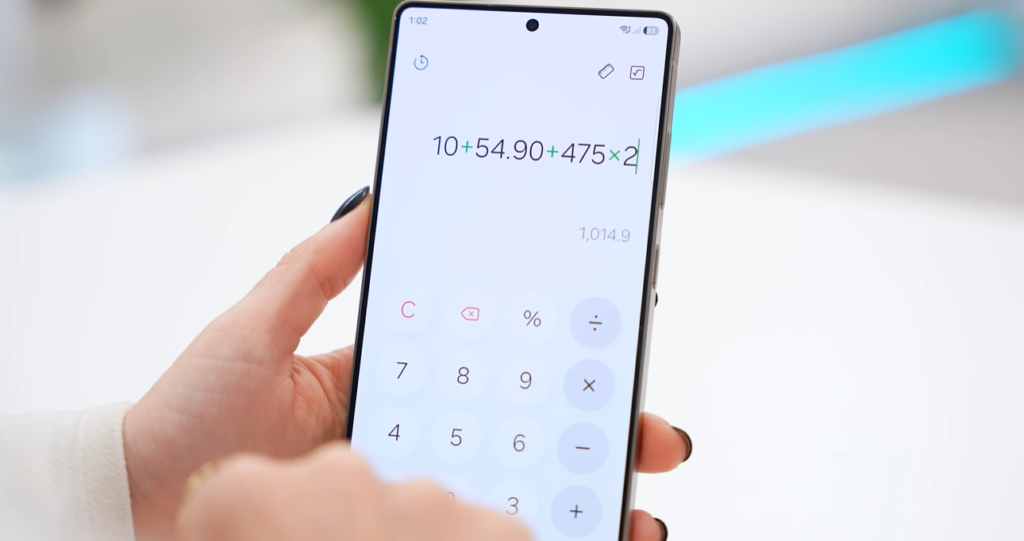
What’s New: When tapping calculator keys:
- Green highlight for numbers and most symbols
- Red highlight for two specific operations (likely equals and clear)
Why It Matters:
- Visual confirmation of input
- Helps prevent errors
- Makes interface feel more responsive
- Adds polish to basic app
Torch Control on Lock Screen
Quick Flashlight Access:
How It Works:
- Turn on flashlight/torch
- Lock your phone
- NEW: Torch control appears in Now Bar at bottom of lock screen
- Tap it directly to turn off without unlocking
Convenience: No need to unlock phone → swipe down → turn off torch. Just tap from lock screen.
“Really nifty” – small time-saver that adds up.
Search Bar Repositioned
Better Ergonomics:
One UI 8: Search bar at top of Settings
One UI 8.5: Search bar moved to bottom of Settings
Why This Is Better:
- Easier thumb reach (especially on large phones)
- One-handed usage improved
- More ergonomic placement
- Common UI pattern (matches other apps)
Reviewer’s Opinion: “I much prefer” the bottom placement.
Device Compatibility & Rollout
Which Devices Get One UI 8.5?
Expected Eligibility:
- Galaxy S24 series
- Galaxy S23 series
- Galaxy S22 series (likely)
- Galaxy Z Fold 6
- Galaxy Z Flip 6
- Galaxy Z Fold 5
- Galaxy Z Flip 5
- Galaxy Tab S9 series
- Galaxy Tab S8 series (possibly)
- Select Galaxy A series flagships
Note: Specific device list and rollout schedule vary by region and carrier.
When Will You Get It?
Rollout Strategy:
- Flagship devices first (S24, Fold 6, Flip 6)
- Previous generation flagships next (S23 series)
- Mid-range devices gradually after
- Regional variations in timing
How to Check: Settings → Software Update → Check for Updates
Should You Update to One UI 8.5?
Major Reasons to Update
✅ Customization Freedom – Quick Settings panel alone is worth it
✅ AI Photo Editing – Professional tools now free and built-in
✅ Privacy Features – Private album and on-device processing
✅ Security Enhancements – Theft protection improvements
✅ Quality of Life – Hundreds of small improvements
✅ Refined Animations – Smoother, more polished experience
✅ Better Accessibility – Dim strobing for eye protection
✅ Smarter Lock Screen – Weather integration, intelligent layout
Potential Concerns
⚠️ Early Bugs – Wait a week or two if you’re risk-averse
⚠️ Battery Life – New features may temporarily affect battery (usually stabilizes)
⚠️ App Compatibility – Some third-party apps may need updates
⚠️ Learning Curve – New gestures and features require adjustment
Our Recommendation
Update, But Smart:
- Backup your device first (always)
- Update when you have time to explore new features
- Wait 1-2 weeks if you need absolute stability
- Early adopters: Update immediately and enjoy
Verdict: One UI 8.5 is a significant upgrade that enhances daily usability without disrupting familiarity. The customization options alone make it worthwhile.
Tips for Getting the Most Out of One UI 8.5
1. Spend 15 Minutes Customizing
Initial Setup Checklist: ☐ Redesign Quick Settings panel for your workflow
☐ Set up lock screen with new clock font
☐ Enable weather toggle on lock screen
☐ Create private album and move sensitive photos
☐ Turn on dim strobing (Accessibility)
☐ Enable failed authentication lock (Security)
☐ Try AI photo editing on old photos
☐ Set up transparent home screen folders
☐ Configure partial screen recording
☐ Enable on-device photo processing
2. Explore Hidden Features
Many One UI 8.5 features aren’t immediately obvious:
- Long-press folders for new settings
- Try partial screen recording
- Test calculator clipboard integration
- Experiment with AI Create tool
- Set weather-based alarm backgrounds
3. Privacy Audit
Protect Your Data:
- Move sensitive photos to private album
- Enable on-device AI processing
- Turn on theft protection features
- Review app permissions post-update
4. Experiment with AI Tools
Creative Play:
- Try AI Create with silly sketches
- Transform selfies with Style tool
- Use AI Eraser to clean up old photos
- Move subjects with AI Move tool
- Save edit history for learning
5. Customize for Productivity
Workflow Optimization:
- Position Quick Settings tiles by frequency of use
- Create transparent folders for app categories
- Use Shot Types for faster content location
- Set up world clock for international collaboration
- Enable partial screen recording for tutorials
Comparison: One UI 8.5 vs One UI 8
What’s Genuinely New
Major Additions:
- Fully customizable Quick Settings (resizable, repositionable)
- Three new lock screen fonts with thickness adjustment
- Intelligent wallpaper positioning
- Partial screen recording
- Enhanced AI photo tools (Create is brand new)
- Private album with fingerprint lock
- Dim strobing accessibility feature
- Failed authentication lock security
- Weather alarm backgrounds
- World clock time comparison tool
- Analog/digital stopwatch views
Refinements:
- Cleaner settings UI (removed descriptions)
- New animations throughout
- Repositioned search bar
- Calculator keystroke highlights
- Torch control on lock screen
- Back navigation preview
- Gallery rounded corners
What Stayed the Same
Core Experience:
- Basic One UI design language
- Navigation gestures (with preview enhancement)
- App layout and organization
- Performance characteristics
- Samsung ecosystem integration
The Balance: One UI 8.5 adds meaningful features without disrupting muscle memory or requiring relearning how to use your phone.
Looking Ahead: S26 Ultra & Future Updates
S26 Ultra Teaser
Reviewer’s Note: “The S26 Ultra is about to come out. So make sure you subscribe for some more Samsung content.”
What to Expect:
- One UI 8.5 will be the launch software
- New hardware will showcase these features optimally
- Potential exclusive S26 features
- Enhanced AI capabilities
- Improved camera integration with AI editing
Future One UI Development
Trends to Watch:
- More AI integration across system
- Deeper customization options
- Privacy-first features (on-device processing)
- Accessibility improvements
- Cross-device experiences (Galaxy ecosystem)
- Enhanced security features
Frequently Asked Questions
Q: Will One UI 8.5 slow down my older Samsung phone?
A: Samsung typically optimizes updates well. You may notice slight performance changes initially, but these usually stabilize within a week. Flagships from the past 2-3 years should run it smoothly.
Q: Can I revert to One UI 8 if I don’t like 8.5?
A: Officially, no easy way to downgrade. You’d need to factory reset and restore from backup (if you backed up before updating). Better to wait for reviews if concerned.
Q: Do all the AI photo editing features require internet?
A: If you enable “Processed Data Only on Device,” all AI features work offline. Otherwise, some may use cloud processing.
Q: Will customizing Quick Settings affect battery life?
A: No, the customization itself doesn’t impact battery. However, the tiles you choose to enable might (for example, keeping location on).
Q: Can I share my Quick Settings layout with friends?
A: Not directly. You’ll need to manually recreate layouts on other devices.
Q: Is the private album truly secure?
A: Yes, it requires biometric authentication. However, if someone has your fingerprint access (while you’re asleep, for example), they could theoretically access it. For maximum security, use a PIN for the private album specifically.
Q: How do I enable partial screen recording?
A: Swipe down Quick Settings → Tap Screen Recording → Select “Partial Screen Recording” option → Choose area → Record.
Q: Will One UI 8.5 come to my Galaxy A series phone?
A: Depends on the model and age. Flagship A-series (like A54, A73) will likely get it, but timing varies. Check Samsung’s official update schedule.
Q: Does weather lock screen use a lot of battery?
A: Minimal impact. It’s an animated wallpaper, so slightly more than static, but Samsung optimizes these features well.
Q: Can I use AI Create to add anything I want to photos?
A: The AI interprets your sketches and adds realistic objects. Results depend on what you draw and the context. It won’t add copyrighted characters or inappropriate content.
Final Verdict: One UI 8.5 Rating
Our Scores
Customization: 10/10 (Best One UI customization yet)
AI Features: 9/10 (Impressive, especially on-device processing)
Privacy: 9/10 (Private album, theft protection, on-device AI)
Usability: 9/10 (Small improvements add up significantly)
Innovation: 8/10 (Some features inspired by iOS, but well-executed)
Stability: TBD (Early to judge, but Samsung’s track record is solid)
Overall: 9/10 – One UI 8.5 is a major update that genuinely enhances the Samsung experience through meaningful customization, AI integration, and thoughtful refinements.
Conclusion: Samsung’s Most Personal Update Yet
One UI 8.5 isn’t about flashy new features that you’ll use once and forget. It’s about empowering users to make their phones truly theirs through deep customization options, while simultaneously adding practical AI tools that solve real problems.
The Three Pillars:
1. Customization From Quick Settings to lock screens to folders, you can now shape your Samsung device to match your exact preferences and workflow.
2. Intelligence AI photo editing, smart wallpaper positioning, and on-device processing bring flagship-level tools to your fingertips without compromising privacy.
3. Refinement Hundreds of small improvements—new animations, repositioned elements, smarter gestures—create a more polished, thoughtful experience.
Who Will Love This Update:
- Power users who customize everything
- Photography enthusiasts
- Privacy-conscious users
- Anyone who felt Samsung phones were too “locked down”
- Users who appreciate attention to detail
The Bottom Line: One UI 8.5 proves Samsung is listening. This update delivers features users actually requested, refines existing functionality, and sets the stage for the S26 series launch. If you have a compatible device, update with confidence—this is One UI at its best.
Have you updated to One UI 8.5 yet? Which feature are you most excited about? Share your thoughts and custom Quick Settings layouts in the comments!
Make sure to backup your device before updating. Features and availability may vary by region and device model.