Quick Verdict: Beyond the headline additions Samsung has publicized, One UI 9 is packed with smaller, easy-to-miss changes — a driving habit tracker that generates full trip reports, AI-generated contact photo cards, a proper redaction tool in Notes, multi-window browsing, and a long-overdue PDF viewer built directly into the Files app. None of these made Samsung’s keynote highlight reel, but several are genuinely useful once you know where to find them.
Note: this post covers features distinct from our main One UI 9 features guide — start there for Control Center customization, split screen, and Bixby changes; this one covers what’s easy to overlook.
Instant Visual Changes You’ll Notice First
A few small design tweaks are visible the moment you update:
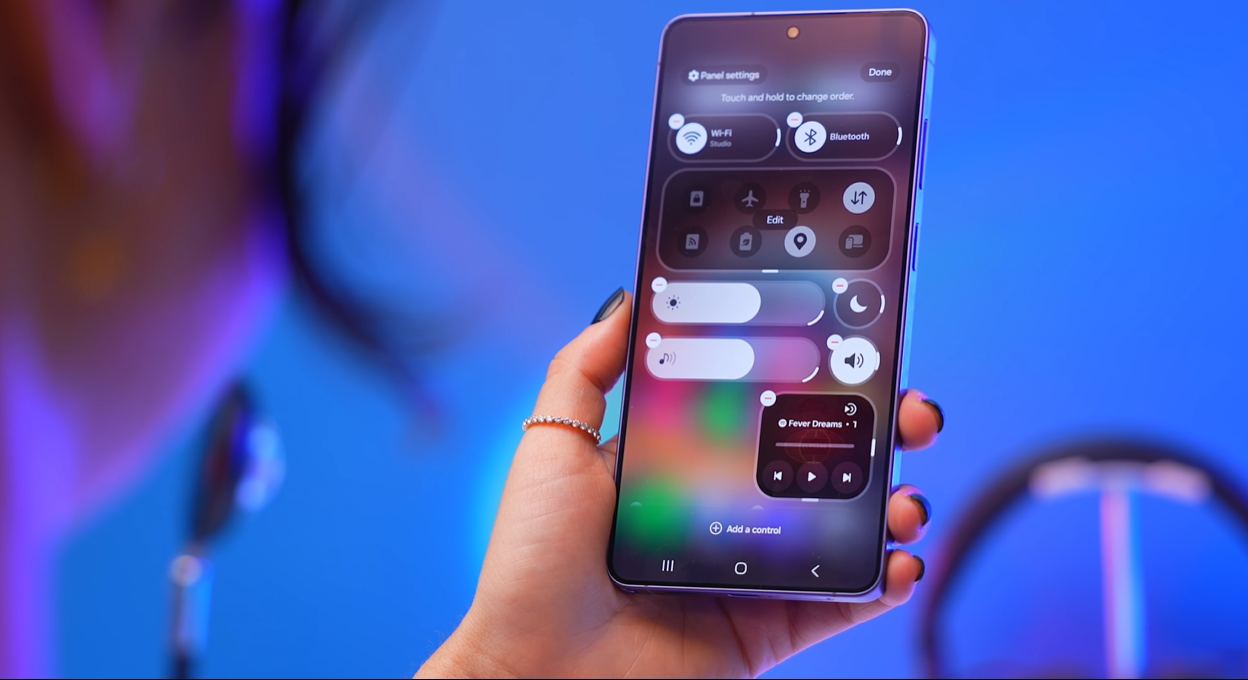
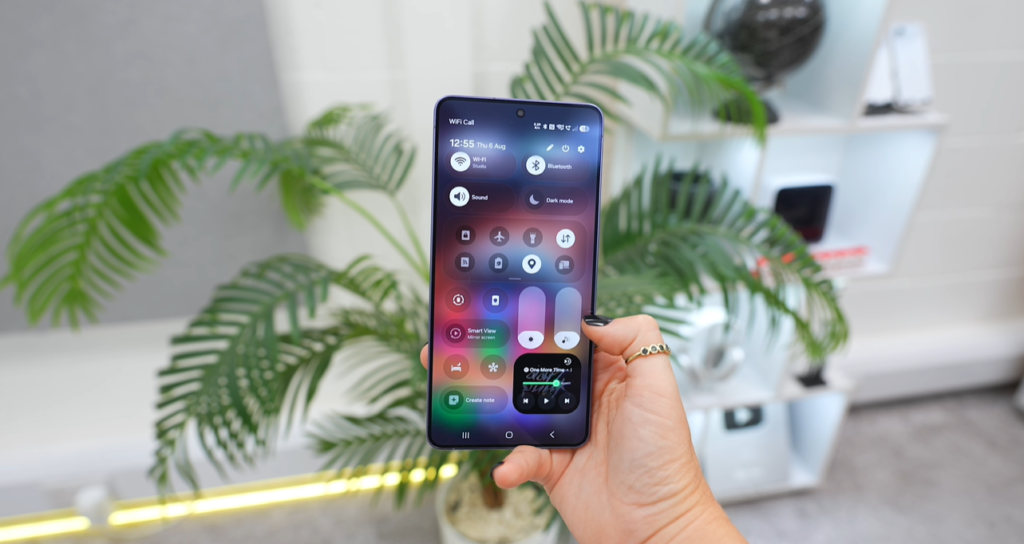
- Bigger volume and brightness sliders in the Quick Settings panel — genuinely easier to control precisely with a thumb.
- A sleeker lock screen with a subtle glow effect on the clock’s wave design.
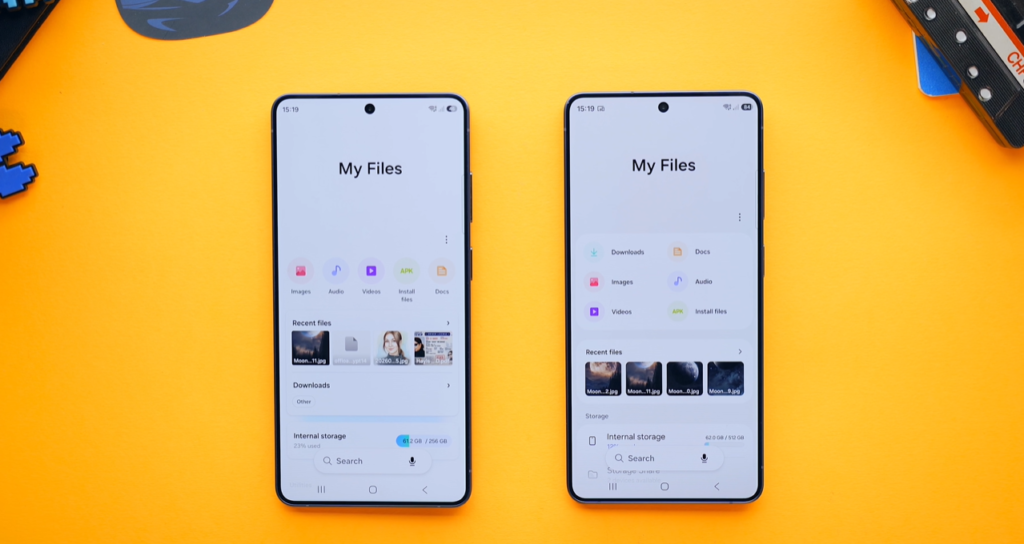
- A reorganized My Files app, with larger, better-laid-out storage categories.
- Cleaner Settings menus — many individual settings no longer show a description text underneath, reducing visual clutter, while Modes and Routines now gained descriptions where it previously lacked them, making those specifically easier to understand at a glance.
The Quick Settings Panel Got a Lot More Flexible
Beyond just bigger sliders, the media controller widget can now be resized freely — previously you could only make it bigger, but now you can shrink it as well. The volume and brightness slider side-buttons, which used to be permanently attached to the sliders, are now fully separate, movable, and resizable into a pill shape. That means you can stretch a slider across the full width of the screen, or just half of it, and position controls exactly where your thumb naturally rests — for example, stacking a small media controller under repositioned volume/brightness sliders for fully one-handed control.
AI-Generated Contact Cards
In the Phone app, when editing a contact and tapping their profile card, a Creative Studio option now appears. Select a photo of the contact, choose from a set of art styles, hit generate, and the app creates a stylized card image for that contact — which then displays automatically on their incoming call screen instead of a plain photo or initials.
The Lock Screen Clock Now Fully Adapts to Your Wallpaper
This is a subtle one: previously, only one of the two available lock screen clock fonts could automatically resize and wrap around a subject in your wallpaper. In One UI 9, both fonts now support this auto-resizing behavior, so the clock intelligently repositions itself based on what’s in your background image regardless of which font you’ve chosen.
Camera: Vertical Split Recording and a New 24MP Mode
Two camera additions are easy to miss:
- Vertical split dual recording — in video mode, swiping to the dual recording option now includes a new vertical split layout, recording from the front and back camera simultaneously with the frame divided top and bottom, better suited to platforms like Instagram or YouTube Shorts than the previous side-by-side layout.
- 24MP photo resolution option — buried in Settings → Camera Assistant, this needs to be manually enabled. Once turned on, the resolution selector in Photo mode gains a 24MP option alongside the existing 12MP, 50MP, and 200MP choices, giving a middle-ground resolution/file-size option that didn’t exist before.
Driving Report: Your Phone Now Tracks Your Car Trips
This is arguably the most substantial hidden feature in the entire update. If you connect your Samsung phone to your car’s Bluetooth, One UI 9 can now track and log your entire drive.
To enable it: Settings → Connected Devices → scroll to the bottom → Driving Report, then select your car from the paired Bluetooth device list. Once set up, it automatically activates whenever your phone connects to that vehicle.
Each completed trip generates a detailed report including:
- A full speed graph for the drive, including top and average speed
- A route map color-coded to show sharp turns, rapid acceleration, and sudden braking
- Tracking of every instance you dropped below roughly 12.5 mph
- How long you used your phone while driving during the trip
This feature is genuinely available in India — Samsung ran its One UI 9 beta program simultaneously across India, the US, UK, Germany, Poland, and South Korea, and Driving Report has been confirmed as part of the stable release, so Indian users aren’t excluded from this one.
Worth flagging honestly: this is a level of driving-behavior data collection worth being aware of, particularly given how directly relevant this kind of data would be to auto insurers if it were ever accessed or shared in that context — currently there’s no indication Samsung shares this with third parties, but it’s a reasonable thing to keep in mind given how detailed the tracking is.
Browser: True Multi-Window Support
Samsung Internet now supports genuine separate browser windows — not just tabs. Via the tabs icon → three-dot menu → Manage Windows, you can create up to five completely independent browser windows, each with their own set of tabs, letting you keep entirely separate browsing contexts (say, work research vs. personal shopping) running in parallel rather than juggling tabs within one window.
Notes: A Real Redaction Tool
Inside the Notes app’s drawing menu, a new redaction tool lets you black out sensitive text or details within an image using solid colors or pattern fills, with adjustable thickness. Tapping a redacted area reveals what’s underneath for your own reference — but critically, if you share that image with someone else, the redacted content stays hidden and unreadable to them. This closes a real gap for anyone who’s ever tried to blur out sensitive info in a screenshot using clumsier workarounds.
DeX: A More Desktop-Like Multi-Desktop View
Once connected to an external display, Samsung DeX now shows all your active virtual desktops at the top of the screen, along with which apps are open in each one — a genuinely more computer-like multitasking experience for anyone using DeX as a laptop replacement.
Privacy: See and Stop Apps Using Your Sensors in Real Time
The camera/microphone/location “active” indicator icons in the notification bar aren’t new, but you can now tap them directly to see which app is currently using that sensor and immediately stop it. Separately, “See Recent Access” (under Settings → Security and Privacy) shows a full history of which apps accessed your microphone, location, or other sensitive data, and exactly when — and from there you can jump straight to an app’s permission settings and switch location access to “Ask every time” if something looks off.
A Proper Sideloaded App Manager
Under Settings → More Security Settings → Manage Unknown Apps, One UI 9 now provides a dedicated view of every app installed from outside the Play Store (sideloaded APKs, for example), making it significantly easier to review and uninstall them — a genuinely useful addition for anyone who’s sideloaded apps and lost track of what’s actually on their device.
Files App Can Finally Open PDFs Directly
A long-overdue fix: the Files app can now open PDF and text files natively, without needing to hand off to a separate app like Notes or Acrobat first. Small change, but one that removes an unnecessary extra step that’s existed for years.
Bonus: A Built-In Network Speed Indicator
Via the Quick Panel settings → Visibility of Indicator Icons → Network Speed, you can enable a live indicator showing your current Wi-Fi or mobile data speed directly in the status bar — handy for quickly diagnosing a slow connection without opening a separate speed test app.
FAQ
Yes. Samsung ran its One UI 9 beta program across India alongside the US, UK, Germany, Poland, and South Korea, and Driving Report is included in the stable release for supported regions including India.
Yes, this is new in One UI 9 — previously you needed a separate app like Notes or Acrobat to view PDFs from the Files app.
Yes, a new redaction tool in the Notes app’s drawing menu lets you black out text or details using solid colors or patterns. Once shared, the redacted content cannot be viewed by the recipient.
Go to Quick Panel settings → Visibility of Indicator Icons → Network Speed, and enable it to show your live Wi-Fi or mobile data speed in the status bar.
Found a One UI 9 feature we missed here or in our main features roundup? Let us know in the comments below.