Quick Verdict: One UI 9, built on Android 17, brings a genuinely useful mix of new and refined features — a more customizable Control Center, hands-free Bixby access, phone-as-webcam support, smarter three-app split screen, and AI-powered camera tools like Fan Cam. Some additions (Creative Studio’s AI card generator) are more gimmick than genuinely useful, but most of this list is worth setting up the moment your device gets the update.
When Is One UI 9 Coming to Your Phone?
Before the feature list, here’s what matters most: is your device even getting this update, and when?
One UI 9 debuted pre-installed on the Galaxy Z Fold 8, Z Fold 8 Ultra, and Z Flip 8 at Samsung’s July 22, 2026 Unpacked event, with the wider stable rollout beginning in the first week of August 2026. The Galaxy S26 series — which had already been running the One UI 9 beta since mid-May, including in India — is next in line, followed by the Galaxy S25 and S24 series.
Expected rollout order:
- Already shipped: Galaxy Z Fold 8, Z Fold 8 Ultra, Z Flip 8 (out of the box)
- First wave: Galaxy S26, S26+, S26 Ultra
- Following shortly after: Galaxy S25 and S24 series, Galaxy Z Fold 7 and Z Flip 7 (and Z Flip 7 FE / Fold Special Edition)
- Later in Q3/Q4 2026: Galaxy S23 series (this will be its final major OS update), select A-series devices (A56, A36, and others from 2024 onward), and Galaxy Tab S10 series and other eligible tablets
Samsung hasn’t published a single official master list with exact dates, so actual timing will vary by device, region, and carrier. If you’re impatient and own an eligible S26-series device, you can join the beta program directly through the Samsung Members app.
1. A Genuinely Customizable Control Center
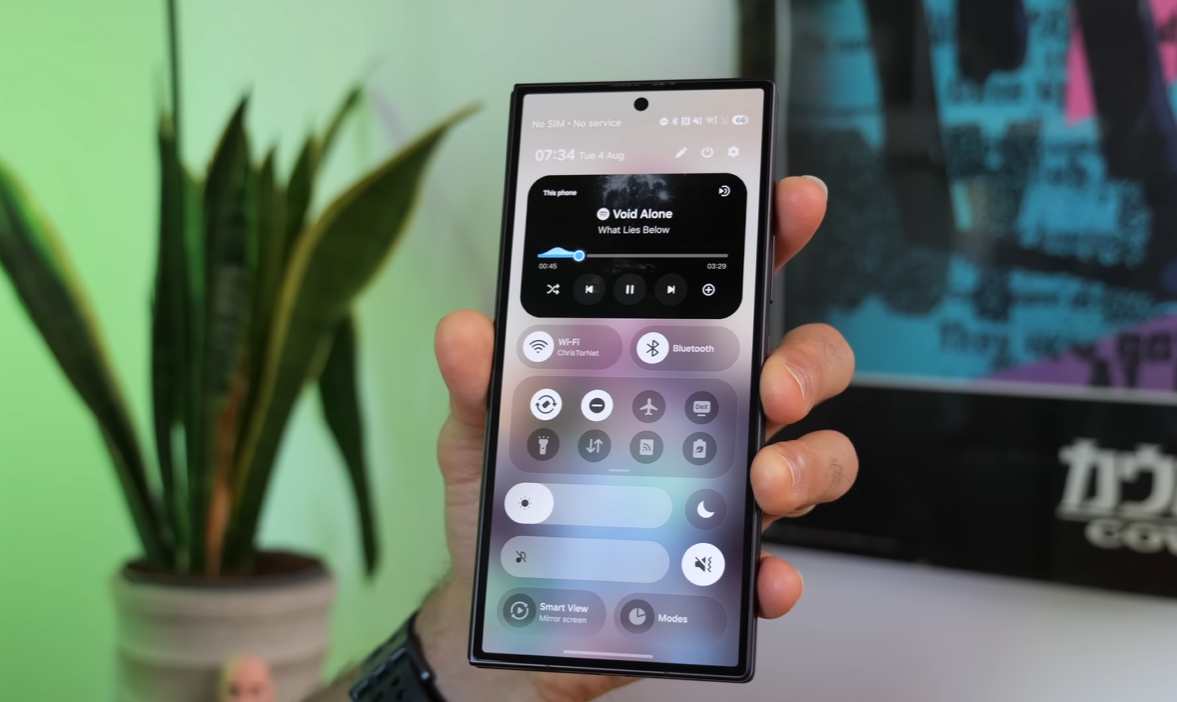
The Control Center — already split from the notifications panel in earlier versions — gets meaningfully more flexible in One UI 9. Tap the pencil icon at the top to enter edit mode, then drag widgets (like the enhanced media playback widget) wherever you want, resize them by dragging their edges, and remove anything you don’t use with the minus icon. Frequent Samsung DeX users can pin that shortcut to the very top row for constant visibility. If you preferred the old unified notifications-and-controls layout, you can merge them back together via the pencil icon → Panel Settings.
2. Hands-Free Bixby Access (No Wake Word Needed)
Bixby becomes noticeably easier to trigger in One UI 9. Head to Settings → Advanced Features → Bixby → Gesture Wake-up, and turn it on. With this enabled, simply raising the phone to your mouth (within about an inch) activates Bixby without needing a spoken wake phrase. Two catches worth knowing: it only works when the phone is genuinely close to your mouth, and it won’t trigger while music or audio is already playing through the device.
3. Use Your Galaxy Phone as a Webcam
If your laptop’s built-in webcam is poor quality or badly positioned, One UI 9 lets you use your Galaxy phone’s camera as a webcam instead. Connect the phone to your laptop via USB, pull down the notification shade, tap the USB connection notification, and select the new “Webcam” option. Then, in your video call app’s settings, switch the camera source to the phone (listed as a UVC camera). This works especially well with foldable phones, since you can bend the device itself into a stable viewing angle instead of needing a separate phone stand.
4. Smart Screenshot Organization
Not new to version 9, but worth setting up if you haven’t already: Gallery → Albums → Screenshots automatically sorts your screenshots into categories like boarding passes, barcodes, and QR codes. Boarding passes can be added directly to Samsung Wallet from there, and a search icon at the top lets you quickly find specific screenshots by content — genuinely useful if you tend to screenshot things as a substitute for remembering them.
5. Call Screening (Still One of the Best Galaxy AI Features)
Also carried over from earlier in 2026 but still worth highlighting: Settings → Galaxy AI → Call Assist → Call Screening. Once enabled, you can have suspected spam and unknown callers automatically screened, or manually screen any call yourself — the caller hears a message asking them to state their purpose, and their spoken response appears as text on your screen before you decide whether to pick up.
6. Three-App Split Screen (Not Just Two)
Split screen gets a genuine upgrade in One UI 9, particularly valuable on foldables. You can trigger it by tapping the small bar at the top of an open app, by dragging an app from the dock into a free section of screen, or by enabling “swipe for split screen” in Settings → Advanced Features → Multi Window, which lets you two-finger swipe from the edge to split instantly. The headline addition: you can now run three apps side by side simultaneously, not just two. If an app refuses to open in split screen, the “Multi Window for All Apps” toggle in the same settings menu can force compatibility, and can also force portrait-only apps into landscape mode.
A practical use case worth trying: play a video (like a YouTube tutorial or background content) in split screen, then swipe the divider almost fully to one side so the video keeps playing in a thin strip while you use the rest of the screen normally.
7. Now Brief (Customizable Daily Glimpse)
The Edge Panel’s “Now Brief” feature gives a personalized daily summary widget, and it’s more customizable in One UI 9 than before. Scroll to the bottom, tap the cog icon, then “Content to Include” to control exactly what appears. You can also build fully custom cards from scratch via the plus icon — for example, a dedicated video card pulling content from a specific source or topic you choose.
8. Creative Studio (Mixed Results, One Standout Tool)
The AI-powered Creative Studio in the Edge Panel can generate things like personalized birthday cards based on prompts, though results can be hit-or-miss and may not match what you actually asked for — treat this as a novelty rather than a reliable tool.
The one genuinely useful feature buried in there is the Interpreter tool, which enables real-time spoken translation for conversations with someone speaking a different language — a legitimately practical feature for travel, without needing to actually learn the language yourself.
9. An Upgraded Game Booster
While gaming, drag from the edge of the screen to reveal the Game Booster toolbar (it’s a subtle, easy-to-miss strip, so look carefully). From here you can toggle between Performance mode (for demanding titles) and Battery Saver mode (for lighter games), monitor CPU/GPU load via System Monitor, boost touch sensitivity, capture screenshots or screen recordings (full screen or a selected region, with optional voice commentary), block Bixby from interrupting, and even overlay a small floating window with another app (like a video walkthrough) while gaming. Settings for all of this live inside the Gaming Hub via the three-dot menu.
10. Web Page Summarization and Camera Upgrades
Inside Samsung Internet, tapping the star icon at the bottom of any page offers a “Summarize” option that condenses the page into brief bullet points — and if you’d rather not read even that, it can read the summary aloud instead.
On the camera side, two features stand out:
- Super Steady mode (introduced with the S26 series, also present here) significantly stabilizes footage shot while moving quickly, useful for action or running shots.
- Fan Cam is a new One UI 9-specific feature that detects people in a horizontally-shot video, lets you tap to select a subject, and automatically reframes and crops the footage around them in your choice of aspect ratio (including 9:16 for platforms like Instagram Reels or YouTube Shorts) — a genuinely useful shortcut for turning regular footage into vertical social content without manual editing.
The photo editing suite also includes a “Suggested Erasers” tool via the same star icon, which intelligently identifies and suggests removing specific objects or people from a photo with a single tap.
FAQ
The Galaxy Z Fold 8, Z Fold 8 Ultra, and Z Flip 8 already ship with it. The Galaxy S26 series is next, followed by the S25 and S24 series, then the S23 series, select A-series devices, and Galaxy Tab S10-series tablets later in 2026.
Among genuinely new additions, three-app split screen and the Fan Cam auto-reframing tool for video stand out as the most practically useful. Among older but still underrated features, call screening remains one of the most useful Galaxy AI tools available.
Yes. Connect your phone to a laptop via USB, select the “Webcam” option from the USB notification, and choose the phone as your video source (listed as a UVC camera) in your video call app’s settings.
Yes, this is new in One UI 9 — previous versions supported two apps side by side, but you can now run three apps simultaneously, particularly useful on foldable devices
Which One UI 9 feature are you most looking forward to trying once it hits your device? Let us know in the comments below.