Nothing OS 5.0: 15+ Big Changes and Features (Plus Eligible Devices List)
Quick Verdict: Nothing OS 5.0, built on Android 17, is the most substantial visual refresh the software has had in years. This isn’t a small point update — it touches the boot screen, lock screen, home screen, notifications, quick settings, the camera, the gallery, and adds two entirely new apps. Below is a full, detailed breakdown of every major change, plus the official eligible devices list and rollout timeline.
Is My Nothing Phone Getting Nothing OS 5.0?
Before the feature breakdown, here’s the most practical information: which devices get this update, and when.
Nothing has confirmed 10 eligible devices, with the Phone (1), Phone (2), and CMF Phone 1 excluded, having already received their promised number of major OS upgrades.
| Device | Open Beta | Stable General Release |
|---|---|---|
| Nothing Phone (3) | August 26, 2026 | Mid-October 2026 |
| Nothing Phone (4a) | Late September 2026 | Early November 2026 |
| Nothing Phone (3a) Pro | Late September 2026 | Early November 2026 |
| Nothing Phone (3a) | Expected similar window to 4a | Early November 2026 |
| Nothing Phone (2a) / (2a) Plus | — | Mid-November 2026 |
| Nothing Phone (3a) Lite | No open beta | Late December 2026 |
| CMF Phone 2 Pro | No open beta | Mid-January 2027 |
Not receiving Nothing OS 5.0: Nothing Phone (1), Nothing Phone (2), CMF Phone 1 — all have reached end of major software support.
Timings are indicative and rollout is phased by region and carrier, so don’t be surprised if your specific device updates a few days later than the general window shown above. If you want early access and your device is eligible, you can join via Settings → System → Nothing Beta Hub (after installing the latest Nothing Beta Hub V2.0 APK) once your device’s beta window opens. Worth noting: two of the more significant visual changes — the redesigned Launcher and the new Micrographics clock face — are not included in the Open Beta and will only arrive with the general stable release starting in October.
The 15+ Big Changes in Nothing OS 5.0
1. A Redesigned Boot Screen
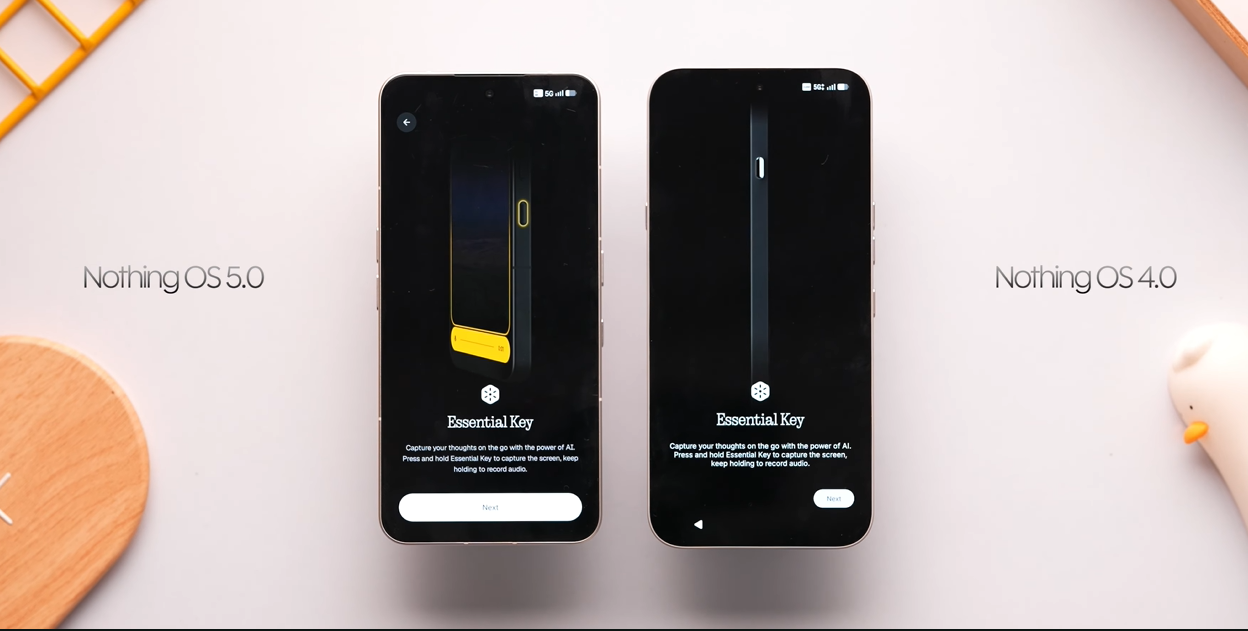
The changes start before you’ve even unlocked the phone. The very first boot screen is noticeably more colorful compared to Nothing OS 4, and several UI elements on it have been shrunk down, giving the whole screen a cleaner, less cluttered first impression. It’s a small moment, but it sets the tone for how much has visually shifted in this release.
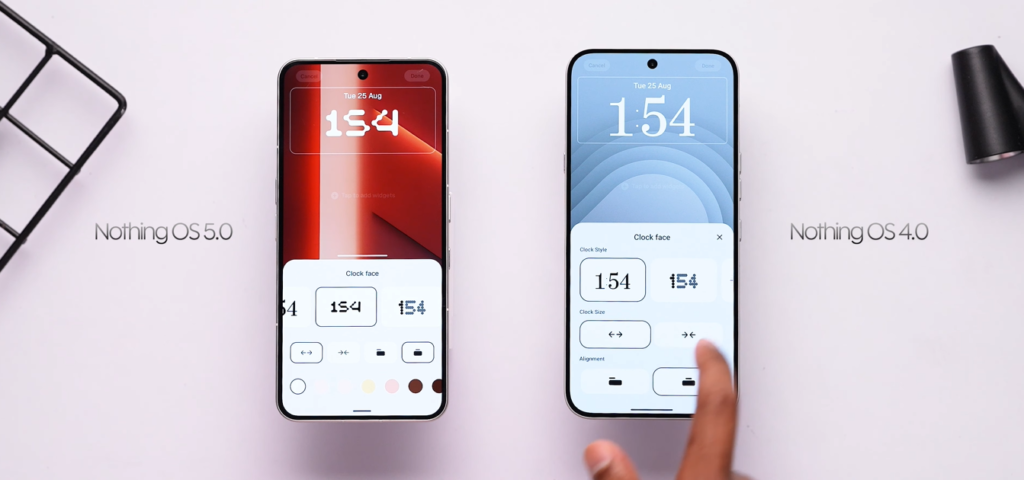
2. A New “GL” Gooey Clock Face
The lock screen gets a batch of changes that aren’t obvious at first glance but add up. The headline addition here is a new clock face nicknamed “GL” — a gooey, fluid-looking typeface that stands in contrast to Nothing’s previous, simpler clock options. It’s a distinctly more playful, expressive look, and whether you like it or not, it signals that Nothing is willing to experiment with typography in a way it hadn’t before.
3. A New Micrographics Clock Face (Coming Later, With Stable Release)
Alongside the GL face, Nothing is introducing a second new lock screen clock style called Micrographics. This one is functional rather than purely decorative — it surfaces daytime info, weather, and upcoming meetings directly on the lock screen without needing to unlock the phone, essentially Nothing’s own version of Google’s “At a Glance” widget. Importantly, this one isn’t in the Open Beta yet; Nothing has confirmed it’s still being finished and will only arrive once the stable build rolls out in October.
4. Wallpaper-Matched Clock Colors
Both new and existing clock faces can now automatically pull their color from your current wallpaper — white, black, or anything in between — rather than being locked to a fixed color palette. Nothing has also said the wallpaper depth effect (the parallax-style separation between subject and background) has been improved in this update, though in hands-on beta testing the difference wasn’t dramatic enough to immediately notice — a “wait and see” for the stable release.
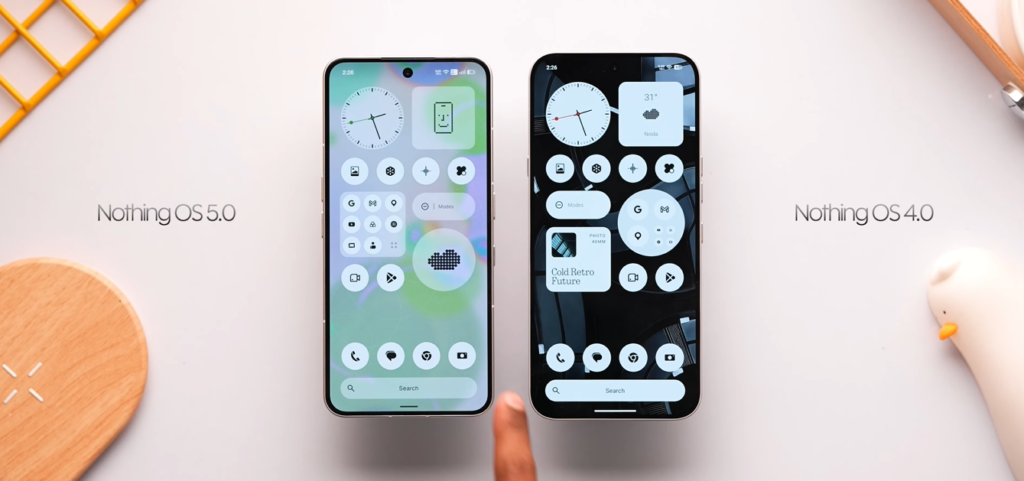
5. The New Home Screen and “Lucent” Theme
Unlocking the phone reveals the biggest single visual change in the entire update: a new system-wide theme Nothing is calling Lucent. This introduces a genuinely different, transparent glass-like effect across widgets — you can see straight through them to whatever’s behind, similar in spirit to the “liquid glass” aesthetic other platforms have recently adopted. Critically, this isn’t limited to one or two widgets — it extends to the search bar (both Google search and Nothing’s own Essential search), and it shows up again on the lock screen widgets, making it feel like a deliberate, consistent design decision rather than a one-off effect. There’s also a setting to reduce the blur intensity if you find the glass effect too strong for your taste, suggesting Nothing may be planning to extend this same glass treatment to app icons in a future update.
6. Three Brand-New Home Screen Widgets
Nothing has shipped three entirely new widgets with this release, each addressing a different use case:
- Away Time — tracks how much time you’re spending away from your phone, essentially a screen-time widget flipped to reward disconnection rather than tracking usage.
- Collector — turns your home screen into a sticky-note-style photo wall. You can add multiple photos to it, swipe through them to browse, and the widget’s cover image automatically cycles between the photos you’ve added.
- Glyph Timer widget — lets you start a Glyph-based countdown timer directly from the home screen, rather than digging into a menu first.
All three widgets support multiple sizes, and all three can also be placed directly on the lock screen, not just the home screen — giving you the same functionality before you’ve even unlocked the phone.
7. Batch App and Widget Editing (A Long-Requested Fix)
This is a smaller feature on paper, but it’s a genuine quality-of-life fix that’s been missing for a while. Previously, setting up a new Nothing phone meant moving every single app icon individually — a tedious process, especially for anyone who switches phones often. Nothing OS 5.0 finally adds a proper batch-edit mode: you can select multiple apps and widgets together and move, delete, or reorganize them all at once, matching functionality that One UI and Color OS have offered for a long time. For anyone who sets up phones repeatedly (reviewers, IT admins, or just serial phone-switchers), this alone meaningfully cuts down setup time.
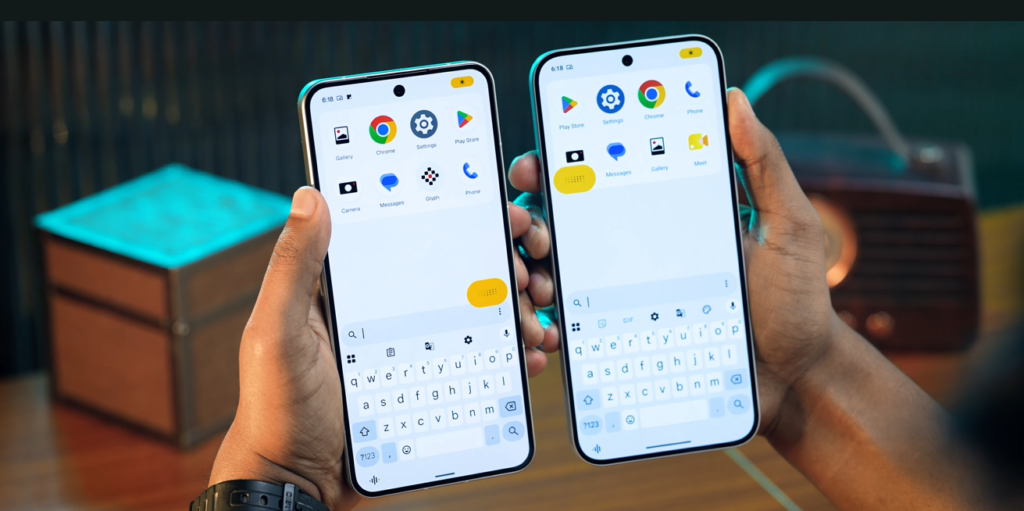
8. Wallpaper Tinting Extended Across the System
The wallpaper-matched coloring introduced on the lock screen clock doesn’t stop there — it’s been extended to small quick-settings-style widgets as well, including things like the compass widget. It’s a subtle detail, but it reinforces the sense that Nothing OS 5.0’s visual language was designed holistically rather than patched together feature by feature.
9. Notifications and Quick Settings Are Finally Split Apart
This is arguably the most talked-about structural change in the entire release, and it’s one with some history behind it. Years ago, when MIUI first split its quick settings and notifications into two separate panels, it was widely mocked online as a needless departure from stock Android. Since then, nearly every major Android skin has quietly adopted the same split — and now Nothing has too. In Nothing OS 5.0, swiping left from the top of the screen opens notifications, while swiping right opens quick settings, replacing the single combined panel from Nothing OS 4. The transition itself has been given real design attention too — there’s a smooth, curtain-like animation whenever either panel opens or closes, rather than a simple instant snap.
10. A Rebuilt Quick Settings Panel
Beyond just being separated out, the quick settings panel itself has been reworked. Extra toggle options that used to live at the bottom of the panel have been moved up to the top, making them easier to reach with one hand. There’s a redesigned volume slider with noticeably improved haptic feedback as you drag it — though as of this beta, you still can’t resize the sliders themselves. Status icons have also been refreshed: the Wi-Fi and mobile data pins now animate more smoothly when toggled on or off, and system-wide actions have gotten small but noticeable animation polish — flipping Airplane Mode on, for instance, now shows a small plane animation actually flying across the toggle.
11. Notification Panel Gets More Useful
Opening the notification panel now surfaces a direct shortcut button to jump straight into notification history, so you no longer need to dig through settings to find a notification you dismissed too quickly. Network information is now displayed directly within the panel as well. Even the clock treatment here has shifted slightly — the date now sits below the time rather than beside it, a small layout tweak but one more example of how thoroughly this update reworks small details throughout the system.
12. Cleaner Media Controls and a Redesigned Screen Recorder
When you’re playing music, the on-screen media widget is now noticeably more compact and cleaner than its Nothing OS 4 equivalent — less visual weight for something you’ll see constantly throughout the day. The screen recorder has had a similar treatment: it now uses a simplified, floating pill-shaped control overlay instead of its previous design, trimming down the options shown at once so the controls feel less cluttered while recording.
13. A New System-Wide Font Option
Nothing has added a new font choice, selectable directly in Settings, giving you another typography option beyond the system default. It’s a small addition, but one that’s been a frequently requested customization option among Nothing’s community.
14. A Redesigned Settings App
The Settings app itself has been visually overhauled — refreshed icons throughout, a more compact overall layout, and menu items that no longer take up as much vertical space as they did in Nothing OS 4. The net effect is a Settings app that feels denser and faster to navigate, rather than requiring excessive scrolling to find a specific toggle.
15. HDR Brightness Control
A genuinely practical addition for display settings: you can now specifically tone down HDR content brightness without affecting your regular manual brightness setting. Previously, HDR video or images could override your chosen brightness and blast at full intensity regardless of your preference — this gives you a dedicated control to rein that in if you find HDR content overly harsh, while still keeping HDR enabled.
16. Expanded Dark Mode
Nothing has added an expanded Dark Mode option that force-applies dark theming to apps that don’t natively support it themselves — a feature that’s become fairly standard across Android skins at this point, but a welcome addition for anyone who wants full-system dark mode without exceptions.
17. A Separate Volume Slider for Assistant/Gemini
Sound settings now include an independent volume slider specifically for your voice assistant (Gemini), separate from your regular media volume. This means you can, for example, keep Gemini’s spoken responses quieter than your music without having to adjust your overall media volume every time.
18. iPhone File Sharing via Quick Share — With a Real Catch
This is the feature Nothing users have been most vocally waiting for, and it’s finally here in some form: Quick Share now works with iPhones. But the way it works matters. Rather than a direct tap-to-share exchange — the kind you’d get between two Android phones, or that Samsung offers with its own ecosystem — sharing to an iPhone in Nothing OS 5.0 works through a QR code method. You generate a QR code on your Nothing phone, the iPhone user scans it with their camera, and the file downloads through a secure web link rather than transferring directly device-to-device. It’s also currently iPhone-only; there’s no Mac support at this stage, which was reportedly the more anticipated half of this feature for some users, and may come in a future update.
Nothing’s Own Apps Get Updated Too
Beyond system-level changes, several of Nothing’s built-in apps have been refreshed:
Gallery: Gets the new transparent “Lucent” treatment applied to its menu bar, along with new sort and filter options for browsing images, the ability to manually reorder albums, and two new editing tools — text overlays and annotations — when editing a photo directly. There’s also a new setting to choose your default save behavior for edited photos.
Camera: Receives a slightly cleaner interface, with the lens selector relocated to the top-left corner and on-screen controls shrunk down slightly to reduce visual clutter. One specific fix: when scanning a QR code using the camera, the result now appears in a fixed position at the bottom of the screen, instead of moving around with the viewfinder as you adjust the frame.
Two Entirely New Apps
Unlike some competing Android skins that pad out updates with bundled games or bloatware, Nothing has added two genuinely functional new apps with this release:
- Glyph app — previously, Glyph-related settings (sounds, ringtones, scheduling, customization) were scattered across different menus. They now live in one dedicated app, making Glyph customization far easier to find and manage in one place.
- Essential app — the Essential widget-creation tool, which lets you build your own custom widgets or download ones other users have created, is now a proper built-in app rather than a separate download — a change many users had been asking for.
AI Features: Refinement Over Reinvention
Given how much of the Android ecosystem has leaned into AI recently, it might be surprising that Nothing OS 5.0 doesn’t introduce a wave of brand-new AI features. Instead, Nothing has focused on refining what already existed:
- Essential Voice is claimed by Nothing to have improved response quality, though in early beta hands-on testing it felt largely similar to its previous version — the real test will come with extended use on the stable build.
- Nothing says animations throughout the system now respond more fluidly mid-gesture, rather than only completing once a gesture finishes.
- Background apps are said to consume fewer system resources overall.
- On-device intelligence now proactively keeps your most frequently used apps pre-loaded and ready to open instantly.
- A new overnight memory optimization process runs while your phone is idle, aiming to keep performance consistent over time.
As with several of the more behind-the-scenes claims in this release, how much of a real difference these background and AI changes make will likely only become clear with weeks of everyday use once the stable version ships — beta testing alone doesn’t give a full picture here.
Nothing OS 5.0 vs One UI / Color OS: Closing the Gap?
With a split notifications/quick settings panel, batch app editing, and deeper system-wide theming, Nothing OS 5.0 borrows several conventions that One UI and Color OS have offered for a while — while still maintaining Nothing’s own distinct visual identity through the dot-matrix design language and new Lucent theme. It’s not a wholesale reinvention, but it meaningfully narrows the feature gap with more mature Android skins while keeping what makes Nothing OS visually distinctive.
FAQ
The Open Beta began August 26, 2026 for the Nothing Phone (3). Stable general release starts mid-October 2026 for the Phone (3), with other eligible devices following in waves through November 2026 and into January 2027.
The Nothing Phone (1), Nothing Phone (2), and CMF Phone 1 will not receive this update, as they’ve already received their promised number of major OS upgrades.
Yes, via Quick Share, but only through a QR-code-based sharing method rather than direct tap-to-share, and only to iPhones — Mac support isn’t included yet.
The split notifications and quick settings panel (swipe left/right, respectively) is likely the biggest functional change, alongside the new translucent “Lucent” visual theme applied system-wide.
Which Nothing OS 5.0 change are you most excited to try once it reaches your device? Let us know in the comments below.Quick Verdict: Nothing OS 5.0, built on Android 17, is the most substantial visual refresh the software has had in years. This isn’t a small point update — it touches the boot screen, lock screen, home screen, notifications, quick settings, the camera, the gallery, and adds two entirely new apps. Below is a full, detailed breakdown of every major change, plus the official eligible devices list and rollout timeline.
Is My Nothing Phone Getting Nothing OS 5.0?
Before the feature breakdown, the most practically useful information: which devices actually get this update, and when.
Nothing has confirmed 10 eligible devices, with the Phone (1), Phone (2), and CMF Phone 1 excluded, having already received their promised number of major OS upgrades.
| Device | Open Beta | Stable General Release |
|---|---|---|
| Nothing Phone (3) | August 26, 2026 | Mid-October 2026 |
| Nothing Phone (4a) | Late September 2026 | Early November 2026 |
| Nothing Phone (3a) Pro | Late September 2026 | Early November 2026 |
| Nothing Phone (3a) | Expected similar window to 4a | Early November 2026 |
| Nothing Phone (2a) / (2a) Plus | — | Mid-November 2026 |
| Nothing Phone (3a) Lite | No open beta | Late December 2026 |
| CMF Phone 2 Pro | No open beta | Mid-January 2027 |
Not receiving Nothing OS 5.0: Nothing Phone (1), Nothing Phone (2), CMF Phone 1 — all have reached end of major software support.
Timings are indicative and rollout is phased by region and carrier, so don’t be surprised if your specific device updates a few days later than the general window shown above. If you want early access and your device is eligible, you can join via Settings → System → Nothing Beta Hub (after installing the latest Nothing Beta Hub V2.0 APK) once your device’s beta window opens. Worth noting: two of the more significant visual changes — the redesigned Launcher and the new Micrographics clock face — are not included in the Open Beta and will only arrive with the general stable release starting in October.
The 15+ Big Changes in Nothing OS 5.0
1. A Redesigned Boot Screen
The changes start before you’ve even unlocked the phone. The very first boot screen is noticeably more colorful compared to Nothing OS 4, and several UI elements on it have been shrunk down, giving the whole screen a cleaner, less cluttered first impression. It’s a small moment, but it sets the tone for how much has visually shifted in this release.
2. A New “GL” Gooey Clock Face
The lock screen gets a batch of changes that aren’t obvious at first glance but add up. The headline addition here is a new clock face nicknamed “GL” — a gooey, fluid-looking typeface that stands in contrast to Nothing’s previous, simpler clock options. It’s a distinctly more playful, expressive look, and whether you like it or not, it signals that Nothing is willing to experiment with typography in a way it hadn’t before.
3. A New Micrographics Clock Face (Coming Later, With Stable Release)
Alongside the GL face, Nothing is introducing a second new lock screen clock style called Micrographics. This one is functional rather than purely decorative — it surfaces daytime info, weather, and upcoming meetings directly on the lock screen without needing to unlock the phone, essentially Nothing’s own version of Google’s “At a Glance” widget. Importantly, this one isn’t in the Open Beta yet; Nothing has confirmed it’s still being finished and will only arrive once the stable build rolls out in October.
4. Wallpaper-Matched Clock Colors
Both new and existing clock faces can now automatically pull their color from your current wallpaper — white, black, or anything in between — rather than being locked to a fixed color palette. Nothing has also said the wallpaper depth effect (the parallax-style separation between subject and background) has been improved in this update, though in hands-on beta testing the difference wasn’t dramatic enough to immediately notice — a “wait and see” for the stable release.
5. The New Home Screen and “Lucent” Theme
Unlocking the phone reveals the biggest single visual change in the entire update: a new system-wide theme Nothing is calling Lucent. This introduces a genuinely different, transparent glass-like effect across widgets — you can see straight through them to whatever’s behind, similar in spirit to the “liquid glass” aesthetic other platforms have recently adopted. Critically, this isn’t limited to one or two widgets — it extends to the search bar (both Google search and Nothing’s own Essential search), and it shows up again on the lock screen widgets, making it feel like a deliberate, consistent design decision rather than a one-off effect. There’s also a setting to reduce the blur intensity if you find the glass effect too strong for your taste, suggesting Nothing may be planning to extend this same glass treatment to app icons in a future update.
6. Three Brand-New Home Screen Widgets
Nothing has shipped three entirely new widgets with this release, each addressing a different use case:
- Away Time — tracks how much time you’re spending away from your phone, essentially a screen-time widget flipped to reward disconnection rather than tracking usage.
- Collector — turns your home screen into a sticky-note-style photo wall. You can add multiple photos to it, swipe through them to browse, and the widget’s cover image automatically cycles between the photos you’ve added.
- Glyph Timer widget — lets you start a Glyph-based countdown timer directly from the home screen, rather than digging into a menu first.
All three widgets support multiple sizes, and all three can also be placed directly on the lock screen, not just the home screen — giving you the same functionality before you’ve even unlocked the phone.
7. Batch App and Widget Editing (A Long-Requested Fix)
This is a smaller feature on paper, but it’s a genuine quality-of-life fix that’s been missing for a while. Previously, setting up a new Nothing phone meant moving every single app icon individually — a tedious process, especially for anyone who switches phones often. Nothing OS 5.0 finally adds a proper batch-edit mode: you can select multiple apps and widgets together and move, delete, or reorganize them all at once, matching functionality that One UI and Color OS have offered for a long time. For anyone who sets up phones repeatedly (reviewers, IT admins, or just serial phone-switchers), this alone meaningfully cuts down setup time.
8. Wallpaper Tinting Extended Across the System
The wallpaper-matched coloring introduced on the lock screen clock doesn’t stop there — it’s been extended to small quick-settings-style widgets as well, including things like the compass widget. It’s a subtle detail, but it reinforces the sense that Nothing OS 5.0’s visual language was designed holistically rather than patched together feature by feature.
9. Notifications and Quick Settings Are Finally Split Apart
This is arguably the most talked-about structural change in the entire release, and it’s one with some history behind it. Years ago, when MIUI first split its quick settings and notifications into two separate panels, it was widely mocked online as a needless departure from stock Android. Since then, nearly every major Android skin has quietly adopted the same split — and now Nothing has too. In Nothing OS 5.0, swiping left from the top of the screen opens notifications, while swiping right opens quick settings, replacing the single combined panel from Nothing OS 4. The transition itself has been given real design attention too — there’s a smooth, curtain-like animation whenever either panel opens or closes, rather than a simple instant snap.
10. A Rebuilt Quick Settings Panel
Beyond just being separated out, the quick settings panel itself has been reworked. Extra toggle options that used to live at the bottom of the panel have been moved up to the top, making them easier to reach with one hand. There’s a redesigned volume slider with noticeably improved haptic feedback as you drag it — though as of this beta, you still can’t resize the sliders themselves. Status icons have also been refreshed: the Wi-Fi and mobile data pins now animate more smoothly when toggled on or off, and system-wide actions have gotten small but noticeable animation polish — flipping Airplane Mode on, for instance, now shows a small plane animation actually flying across the toggle.
11. Notification Panel Gets More Useful
Opening the notification panel now surfaces a direct shortcut button to jump straight into notification history, so you no longer need to dig through settings to find a notification you dismissed too quickly. Network information is now displayed directly within the panel as well. Even the clock treatment here has shifted slightly — the date now sits below the time rather than beside it, a small layout tweak but one more example of how thoroughly this update reworks small details throughout the system.
12. Cleaner Media Controls and a Redesigned Screen Recorder
When you’re playing music, the on-screen media widget is now noticeably more compact and cleaner than its Nothing OS 4 equivalent — less visual weight for something you’ll see constantly throughout the day. The screen recorder has had a similar treatment: it now uses a simplified, floating pill-shaped control overlay instead of its previous design, trimming down the options shown at once so the controls feel less cluttered while recording.
13. A New System-Wide Font Option
Nothing has added a new font choice, selectable directly in Settings, giving you another typography option beyond the system default. It’s a small addition, but one that’s been a frequently requested customization option among Nothing’s community.
14. A Redesigned Settings App
The Settings app itself has been visually overhauled — refreshed icons throughout, a more compact overall layout, and menu items that no longer take up as much vertical space as they did in Nothing OS 4. The net effect is a Settings app that feels denser and faster to navigate, rather than requiring excessive scrolling to find a specific toggle.
15. HDR Brightness Control
A genuinely practical addition for display settings: you can now specifically tone down HDR content brightness without affecting your regular manual brightness setting. Previously, HDR video or images could override your chosen brightness and blast at full intensity regardless of your preference — this gives you a dedicated control to rein that in if you find HDR content overly harsh, while still keeping HDR enabled.
16. Expanded Dark Mode
Nothing has added an expanded Dark Mode option that force-applies dark theming to apps that don’t natively support it themselves — a feature that’s become fairly standard across Android skins at this point, but a welcome addition for anyone who wants full-system dark mode without exceptions.
17. A Separate Volume Slider for Assistant/Gemini
Sound settings now include an independent volume slider specifically for your voice assistant (Gemini), separate from your regular media volume. This means you can, for example, keep Gemini’s spoken responses quieter than your music without having to adjust your overall media volume every time.
18. iPhone File Sharing via Quick Share — With a Real Catch
This is the feature Nothing users have been most vocally waiting for, and it’s finally here in some form: Quick Share now works with iPhones. But the way it works matters. Rather than a direct tap-to-share exchange — the kind you’d get between two Android phones, or that Samsung offers with its own ecosystem — sharing to an iPhone in Nothing OS 5.0 works through a QR code method. You generate a QR code on your Nothing phone, the iPhone user scans it with their camera, and the file downloads through a secure web link rather than transferring directly device-to-device. It’s also currently iPhone-only; there’s no Mac support at this stage, which was reportedly the more anticipated half of this feature for some users, and may come in a future update.
Nothing’s Own Apps Get Updated Too
Beyond system-level changes, several of Nothing’s built-in apps have been refreshed:
Gallery: Gets the new transparent “Lucent” treatment applied to its menu bar, along with new sort and filter options for browsing images, the ability to manually reorder albums, and two new editing tools — text overlays and annotations — when editing a photo directly. There’s also a new setting to choose your default save behavior for edited photos.
Camera: Receives a slightly cleaner interface, with the lens selector relocated to the top-left corner and on-screen controls shrunk down slightly to reduce visual clutter. One specific fix: when scanning a QR code using the camera, the result now appears in a fixed position at the bottom of the screen, instead of moving around with the viewfinder as you adjust the frame.
Two Entirely New Apps
Unlike some competing Android skins that pad out updates with bundled games or bloatware, Nothing has added two genuinely functional new apps with this release:
- Glyph app — previously, Glyph-related settings (sounds, ringtones, scheduling, customization) were scattered across different menus. They now live in one dedicated app, making Glyph customization far easier to find and manage in one place.
- Essential app — the Essential widget-creation tool, which lets you build your own custom widgets or download ones other users have created, is now a proper built-in app rather than a separate download — a change many users had been asking for.
AI Features: Refinement Over Reinvention
Given how much of the Android ecosystem has leaned into AI recently, it might be surprising that Nothing OS 5.0 doesn’t introduce a wave of brand-new AI features. Instead, Nothing has focused on refining what already existed:
- Essential Voice is claimed by Nothing to have improved response quality, though in early beta hands-on testing it felt largely similar to its previous version — the real test will come with extended use on the stable build.
- Nothing says animations throughout the system now respond more fluidly mid-gesture, rather than only completing once a gesture finishes.
- Background apps are said to consume fewer system resources overall.
- On-device intelligence now proactively keeps your most frequently used apps pre-loaded and ready to open instantly.
- A new overnight memory optimization process runs while your phone is idle, aiming to keep performance consistent over time.
As with several of the more behind-the-scenes claims in this release, how much of a real difference these background and AI changes make will likely only become clear with weeks of everyday use once the stable version ships — beta testing alone doesn’t give a full picture here.
Nothing OS 5.0 vs One UI / Color OS: Closing the Gap?
With a split notifications/quick settings panel, batch app editing, and deeper system-wide theming, Nothing OS 5.0 borrows several conventions that One UI and Color OS have offered for a while — while still maintaining Nothing’s own distinct visual identity through the dot-matrix design language and new Lucent theme. It’s not a wholesale reinvention, but it meaningfully narrows the feature gap with more mature Android skins while keeping what makes Nothing OS visually distinctive.
FAQ
When does Nothing OS 5.0 come out? The Open Beta began August 26, 2026 for the Nothing Phone (3). Stable general release starts mid-October 2026 for the Phone (3), with other eligible devices following in waves through November 2026 and into January 2027.
Which Nothing phones are NOT getting Nothing OS 5.0? The Nothing Phone (1), Nothing Phone (2), and CMF Phone 1 will not receive this update, as they’ve already received their promised number of major OS upgrades.
Does Nothing OS 5.0 support AirDrop with iPhones? Yes, via Quick Share, but only through a QR-code-based sharing method rather than direct tap-to-share, and only to iPhones — Mac support isn’t included yet.
What is the biggest new feature in Nothing OS 5.0? The split notifications and quick settings panel (swipe left/right respectively) is likely the most significant functional change, alongside the new translucent “Lucent” visual theme applied system-wide.
Which Nothing OS 5.0 change are you most excited to try once it reaches your device? Let us know in the comments below.